How to organize books with categories and collections
Create categories and collections, add or remove books, and find favorites and authors in your Bookrise library.
Keep your book club picks together, group books by genre or make a list for your next trip. Categories and Collections give you room to organize books your way, alongside the lists Bookrise keeps for you and your series.
A book can belong to as many categories, collections and series as you like.
The lists Bookrise keeps for you
On the Books tab, the Library section gives you a few ready-made ways to browse:
- All Books
- Want to Read, Reading, Finished and Abandoned, based on each book’s reading status
- Favorites, for books you’ve added to favorites
- Owned, for books whose Ownership Status is Owned
To keep a favorite close, touch and hold a book in a book list and choose Add to favorites. It appears in Favorites. To remove it from that list, touch and hold it again and choose Remove from favorites.
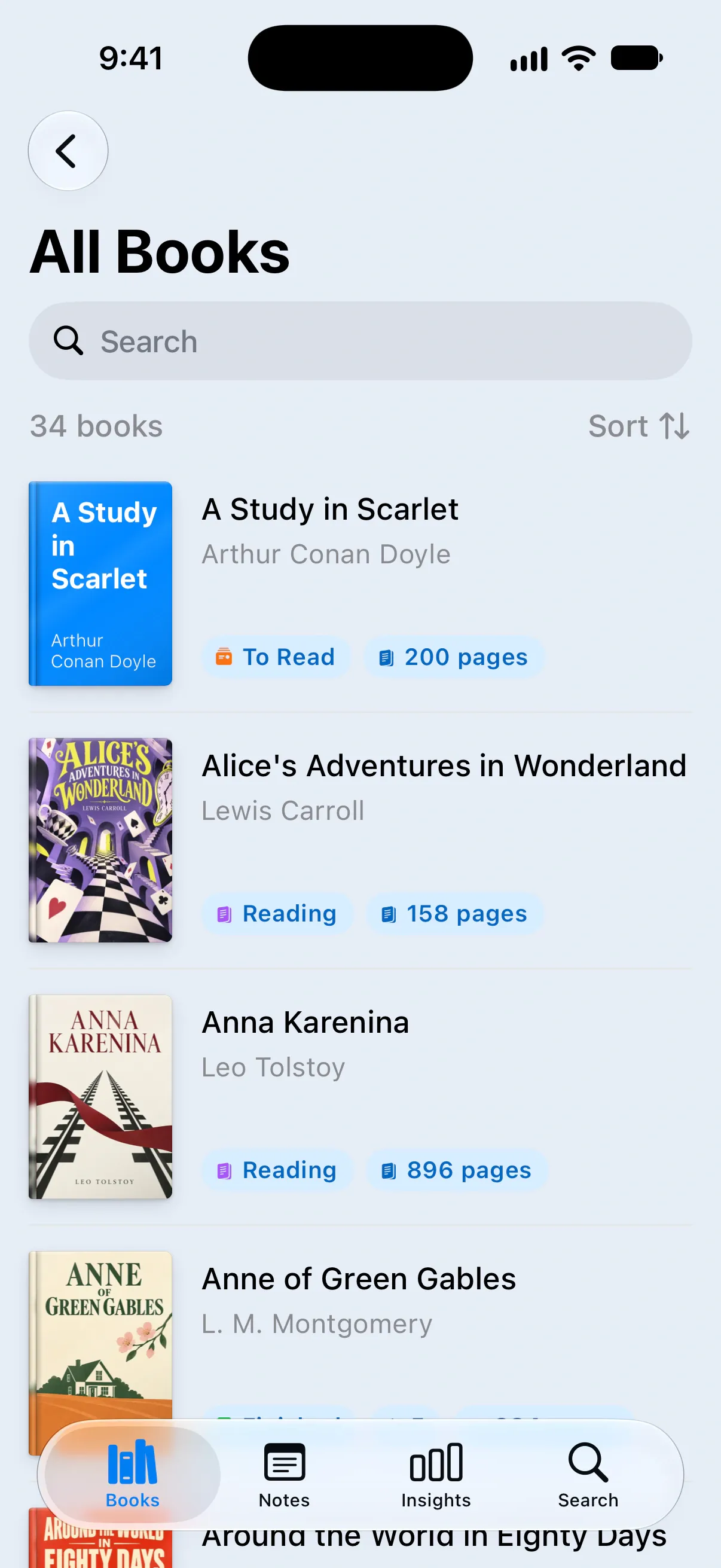
Use the search field in a book list to find a title or author, or tap Sort to change the order.
Choose categories or collections
Both let you group books. Here’s one way to use them:
- Categories work well for genres and topics, such as Classics, Science Fiction or Philosophy. Bookrise may suggest categories when you add a book from search. They’re also used in Top Categories in Insights.
- Collections are useful for lists with a purpose, such as Book Club, Weekend Reads or Gifts for Mom.
For notes and quotes, use tags to connect related ideas.
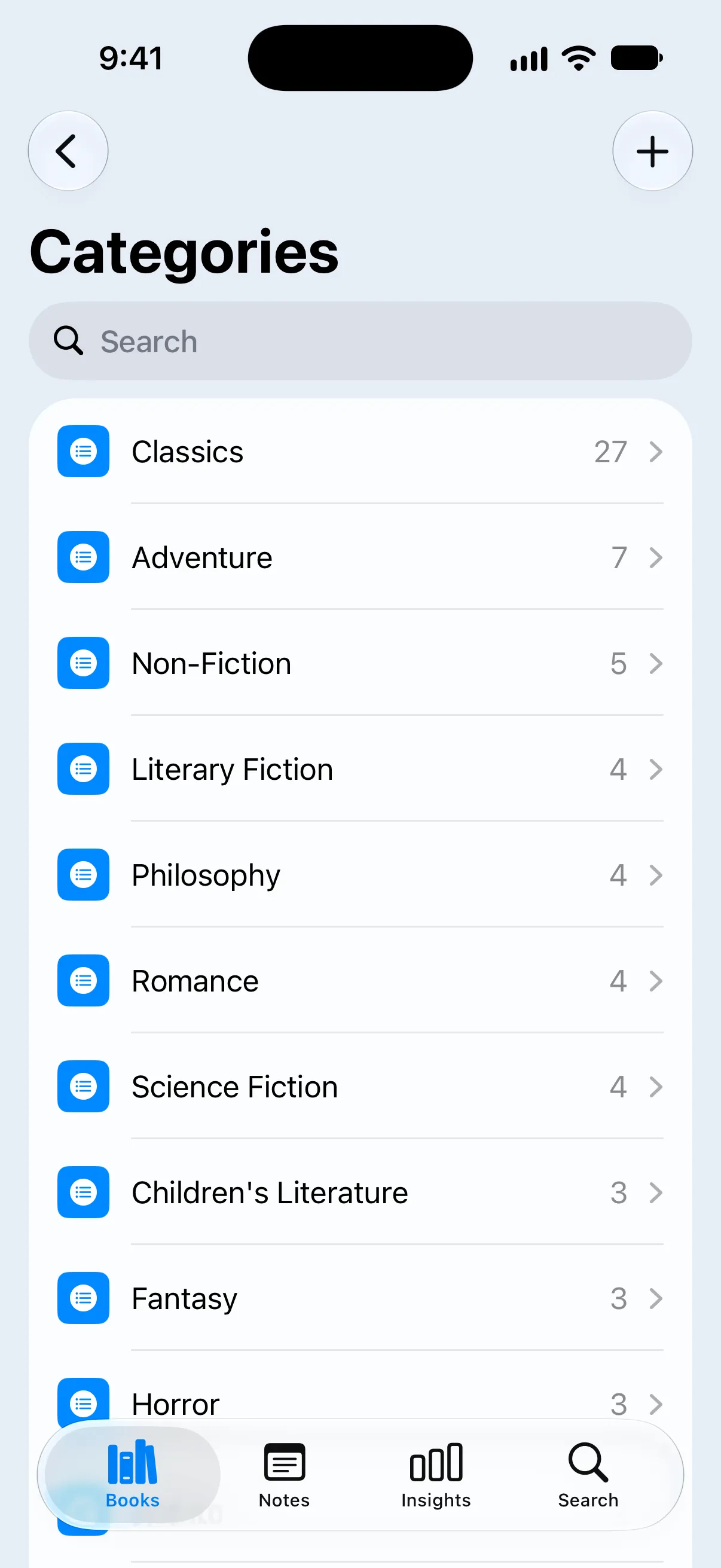
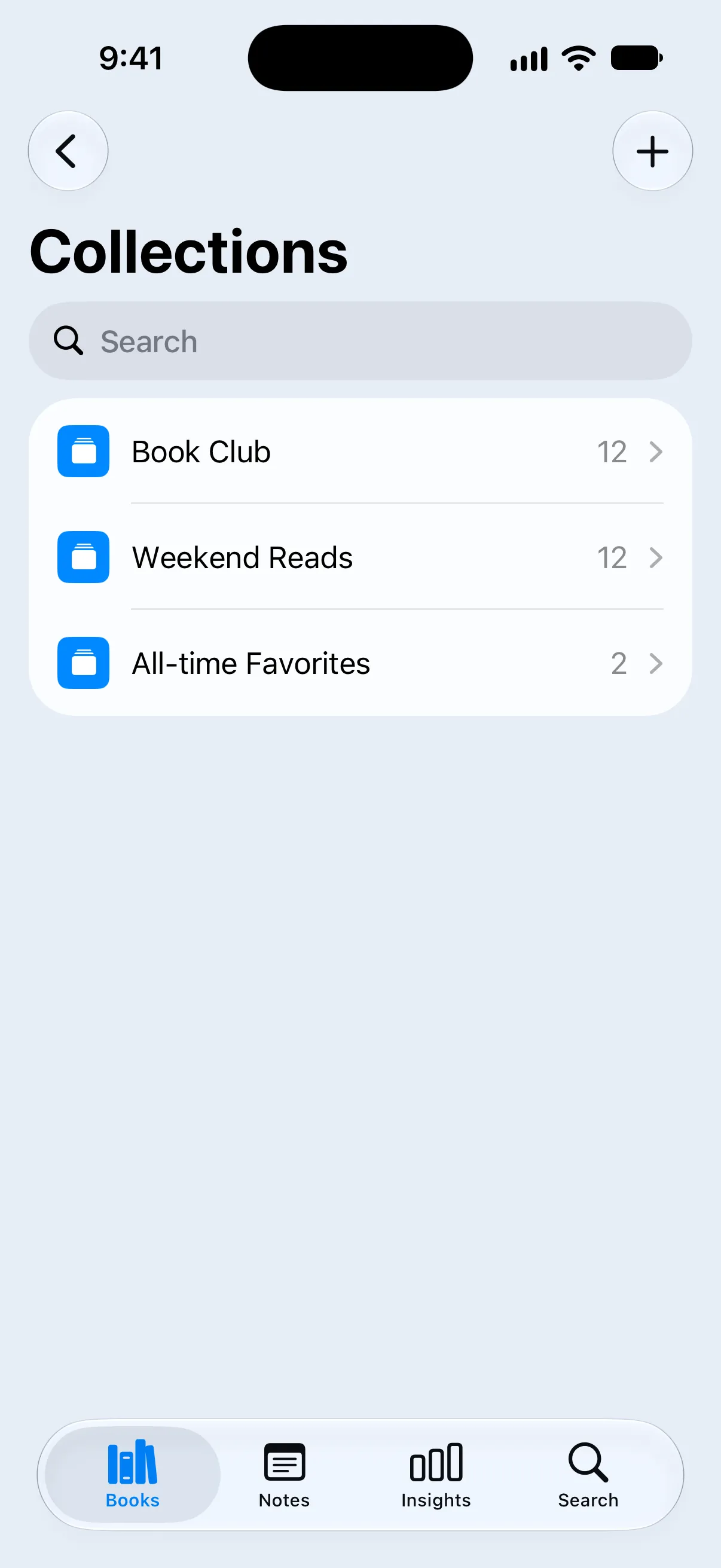
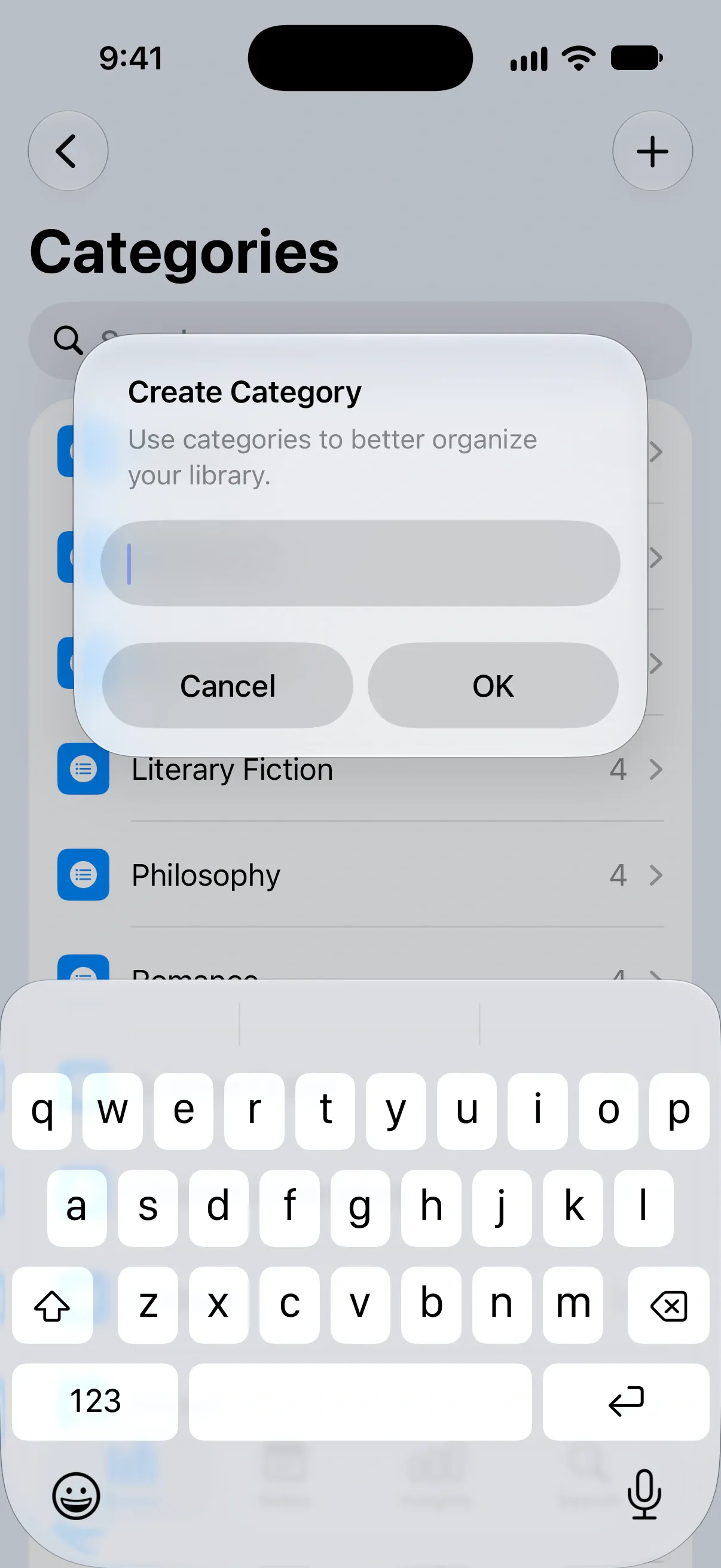
Create a category or collection
- Open the Books tab and scroll to Categories or Collections.
- Tap Create Category or Create Collection. You can also tap View All and then +.
- Type a name and tap OK.
Add a book to categories and collections
When adding or editing a book:
- Scroll to Categories and tap Book’s Categories, or to Collections and tap Book’s Collections.
- Select the groups you want. You can also create a new one at the top of the list.
- Tap the checkmark, then save the book.
For a book already in your library, you can also open its page and tap Edit Categories or Edit Collections.
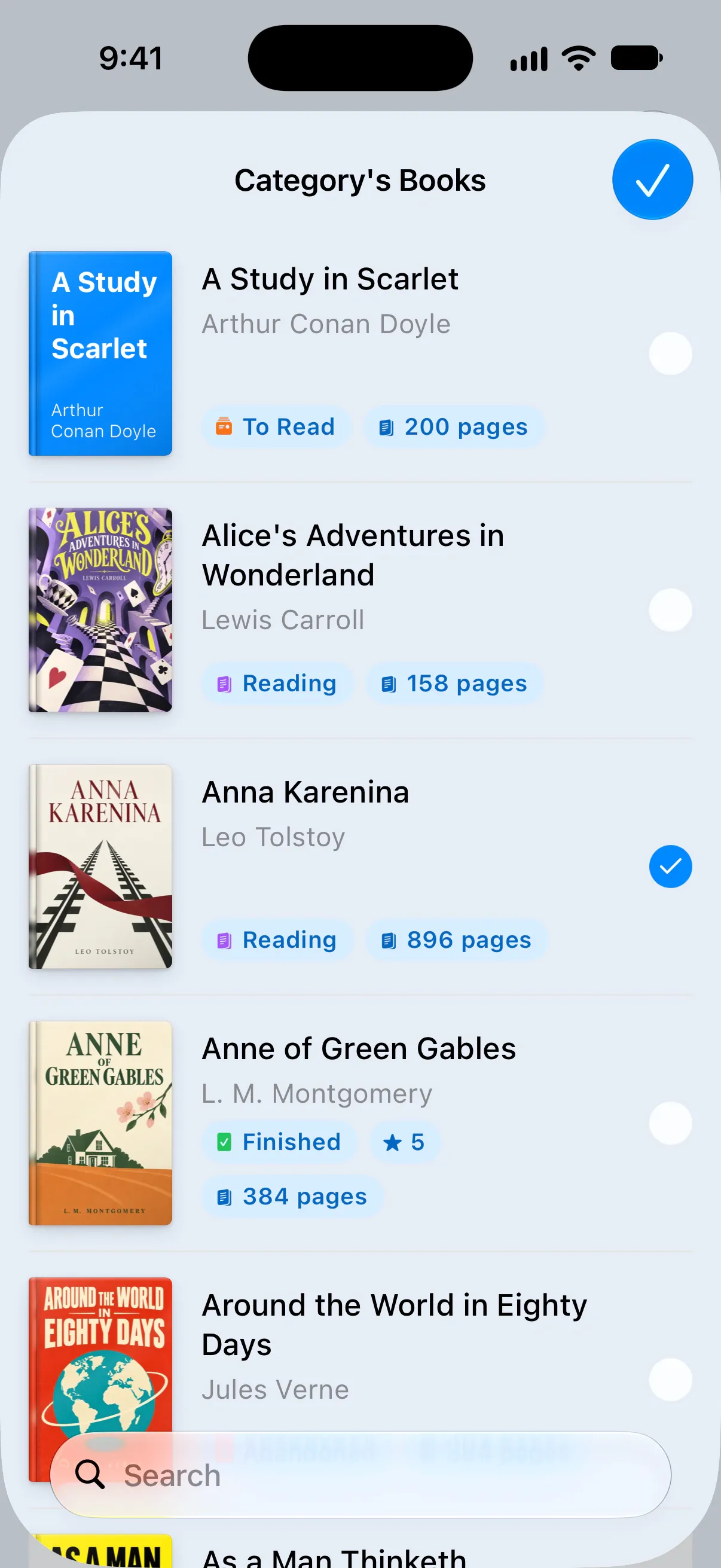
Add many books at once
- Open the category or collection.
- Tap the ⋯ button in the top corner and choose Edit Books.
- Tap the circle next to a book to include it. Tap a checked circle to remove the book from this group.
- Tap the checkmark to save.
Use the search field at the bottom to find books by title or author. Removing a book from a category or collection keeps it in your library.
Rename or delete a category or collection
- Open the category or collection and tap ⋯.
- Choose Edit Category or Edit Collection to change its name, or Delete Category or Delete Collection to remove the group.
You can also touch and hold a category or collection in its list to find the same options. Deleting a group keeps all of its books in your library.
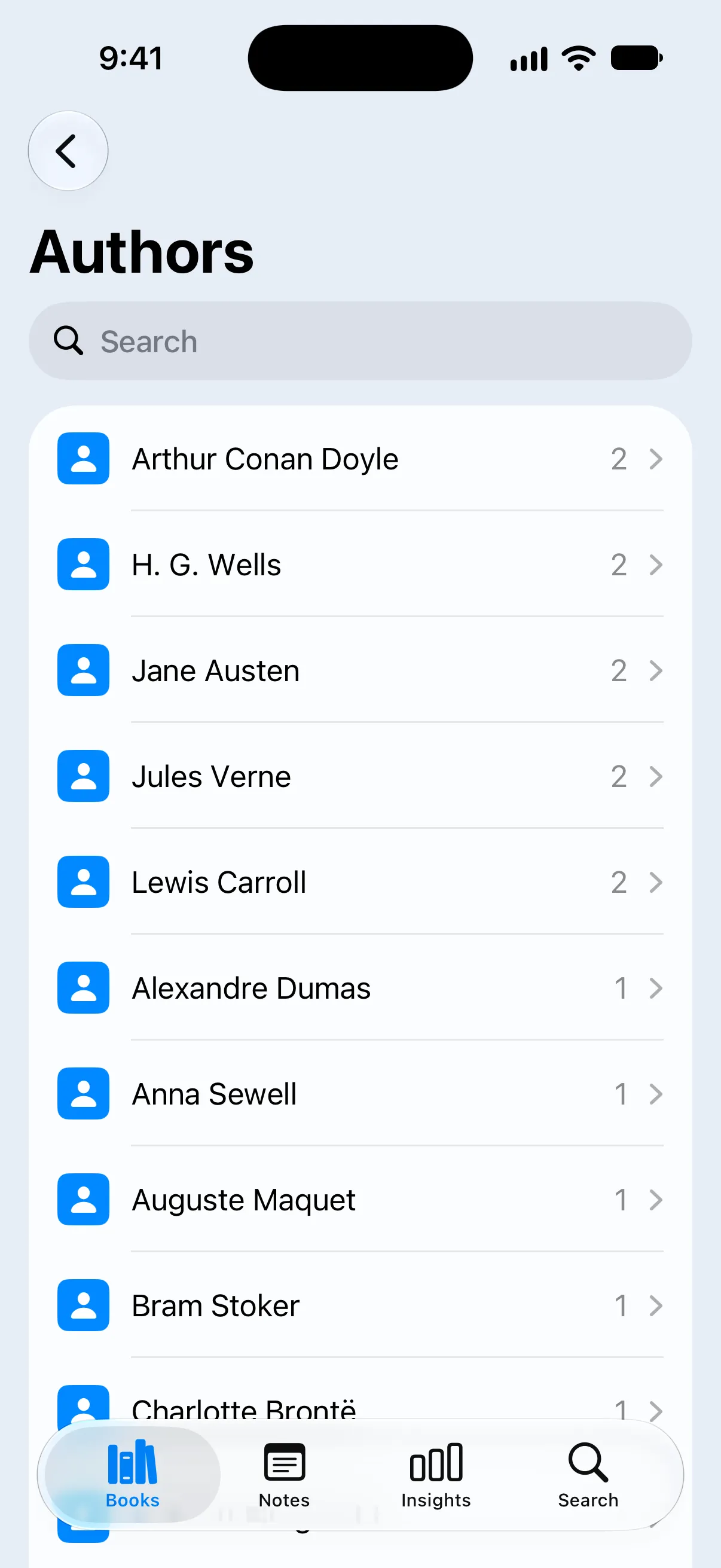
Browse by author
Looking for more books by the same writer? Scroll to Authors on the Books tab and tap View All. Each author has a book count beside their name. Tap a name to see their books in your library.
Bookrise builds the author list from your books, so you don’t need to create it yourself.
Group books by shelf or room
To remember where a book sits at home, create a collection for its shelf or room, such as “Living Room Shelf”. Bookrise doesn’t have a separate shelf-location field.
Questions and answers
Can a book be in more than one category or collection?
Yes. Add a book to as many categories and collections as you like. You don't have to choose just one place for it.
Will deleting a category or collection delete its books?
No. Deleting a category or collection removes the group, but keeps its books in your library.
Does Bookrise have smart lists or tags for books?
Bookrise doesn't have rule-based smart lists, and tags are for notes. Use categories or collections to group books, or the built-in Library lists to browse by reading status or ownership.
How do I mark a book as a favorite?
Touch and hold a book in a book list and choose Add to favorites. You'll find it under Favorites on the Books tab. Use Remove from favorites to take it off that list.
Related
- How to save notes and quotes from your books Save a favorite line or a thought of your own. Write book notes, organize them with tags and share quotes as images or Markdown in Bookrise.
- How to change a book's reading status Keep track of what you want to read, what you're reading and what you've finished. Change a book's status and correct its reading dates.
- How to import your library from Goodreads, StoryGraph or a CSV file Bring your books and reading history into Bookrise from Goodreads, StoryGraph or a CSV export, without adding each book again.