Getting started with Bookrise
Add your first book, mark what you're reading and start tracking your progress in Bookrise.
Welcome to Bookrise. Start with the book you’re reading now, an old favorite or something you’d like to read next. You can build the rest of your library as you go.
Already finished setup? Jump to adding books from the Books tab.
Add books during setup
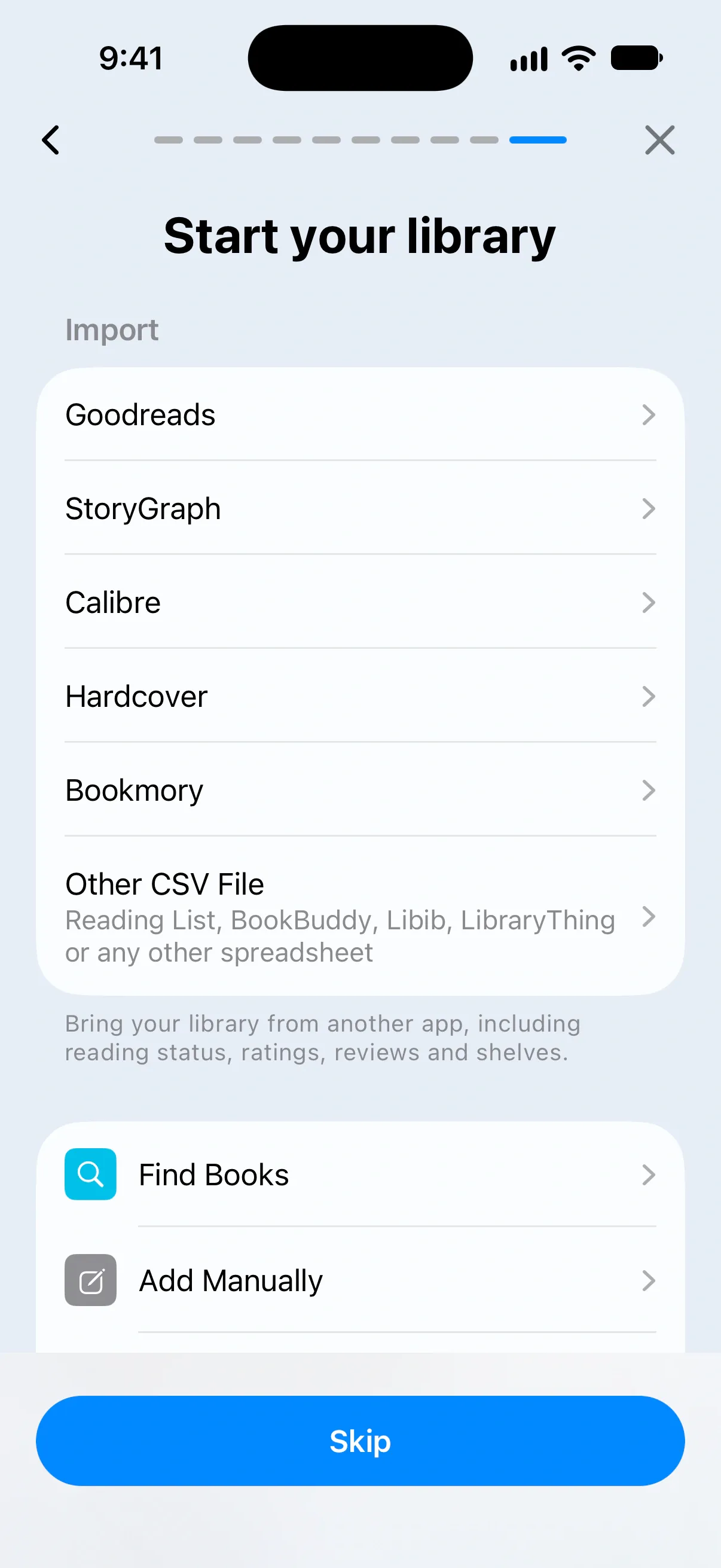
During setup, you’ll reach Start your library. Choose how you’d like to add your books:
- Import: bring books from Goodreads, StoryGraph or another reading app. Choose your app from the list, or Other CSV File for a CSV export.
- Find Books: search for a title, author or ISBN.
- Add Manually: enter a title and any other details you know. Only the title is required.
- Scan Barcode (ISBN): scan the barcode on the back of a printed book. Allow camera access if asked.
- Popular Finds: tap a suggested book’s cover to add it. A green checkmark means it’s in your library.
Once you’ve added a book, tap Continue. You can also tap Skip to add books later.
Add books any time
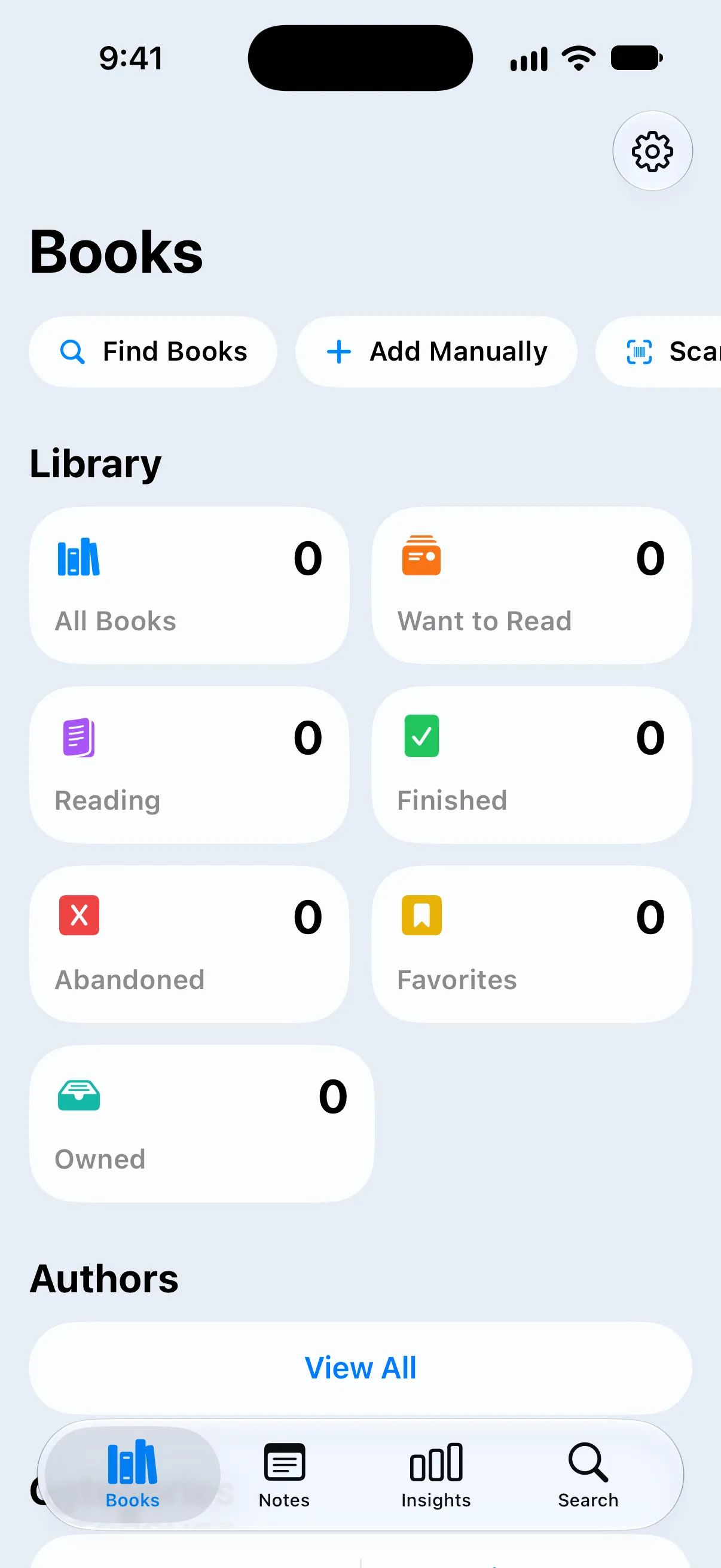
Whether you skipped setup or have another book to add, start from the Books tab:
- Tap Books in the tab bar.
- Choose Find Books, Add Manually or Scan Barcode (ISBN) from the row at the top. Swipe the row if an option is out of view.
- If you searched or scanned, open the book you want and tap Add to Library.
- Check the details in Add Book, then tap the checkmark to save.
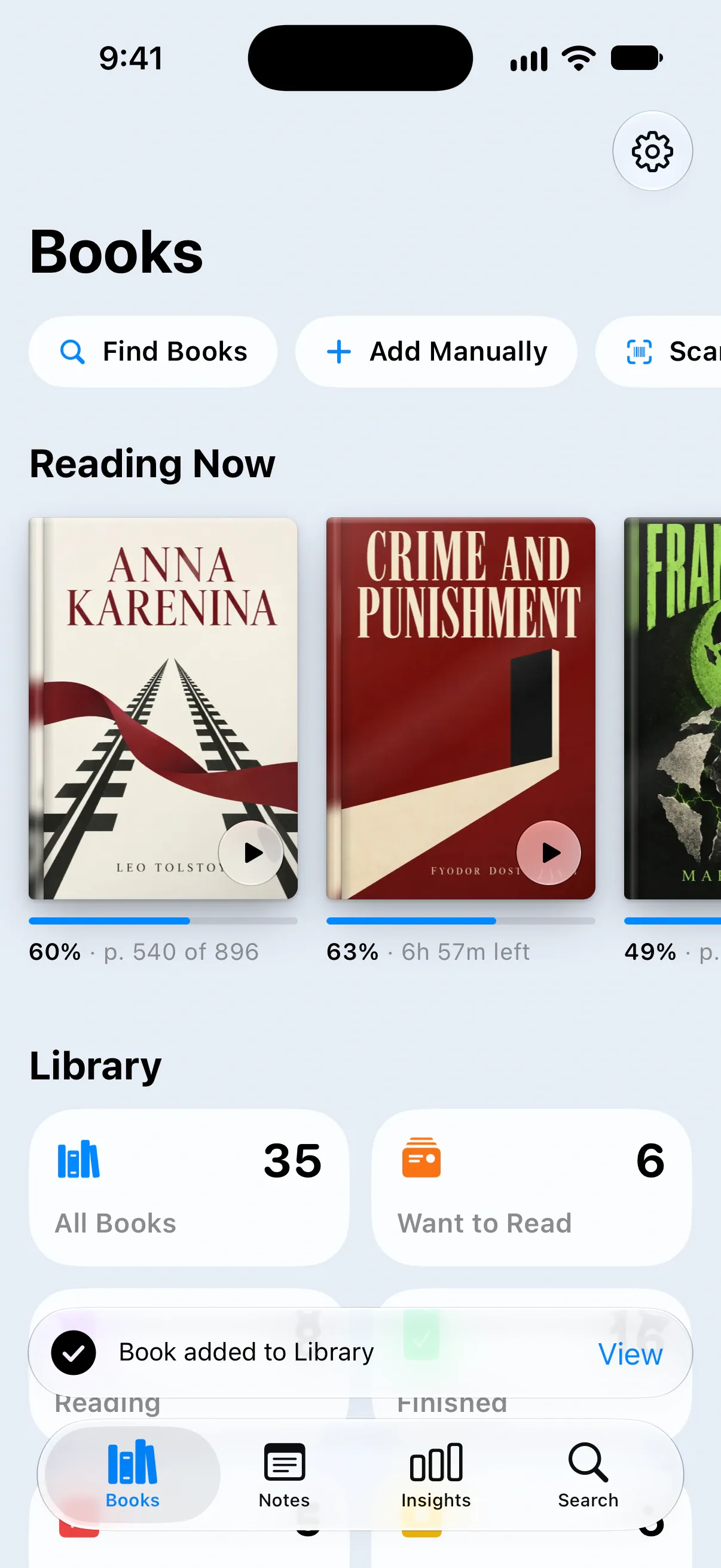
You’ll see Book added to Library when it’s saved. Tap View to open the book, or keep adding more.
The guide to adding books explains each option in more detail, including how to add a book from a website link.
Mark what you’re reading
New books are saved as To Read unless you choose a different status. You’ll find them under Want to Read on the Books tab.
To mark the book you’re reading now:
- Open the book.
- Tap Reading Status and choose Reading.
Your book moves to Reading Now at the top of the Books tab, so it’s easy to find when you pick it up again.
Choose Finished when you’re done, or Abandoned if you decide not to finish. Learn more about reading statuses.
What to try next
Once you’ve added a book, try whichever of these feels useful:
- Record your progress. Tap Update Progress on the book’s page, or use Reading Mode to time a session.
- Set a reading goal. Choose a daily or yearly target in Insights.
- Make the app your own. Pick a color and theme in Settings → Appearance. Customize how Bookrise looks.
- Organize your books. Group them by topic, keep a series together or create your own collections. Explore categories and collections.
Questions and answers
Do I need an account to use Bookrise?
No. Open Bookrise and start adding books. Your library is saved on your device.
Can I bring my library from Goodreads or StoryGraph?
Yes. Export your books from the other app first. Then choose your app under Import during setup, or go to Settings → Import & Export in Bookrise later.
I skipped setup. How do I add books now?
Open the Books tab and choose Find Books, Add Manually or Scan Barcode (ISBN) from the row at the top. You can add books whenever you're ready.
Related
- How to add a book to your library Add a book to Bookrise by searching, scanning its barcode, using a link to its page online or entering the details yourself.
- How to change a book's reading status Keep track of what you want to read, what you're reading and what you've finished. Change a book's status and correct its reading dates.
- How to import your library from Goodreads, StoryGraph or a CSV file Bring your books and reading history into Bookrise from Goodreads, StoryGraph or a CSV export, without adding each book again.