How to track book purchases and money spent
Keep a record of book purchases, prices and stores, then see how your spending adds up in Bookrise Insights.
Keep the details of a bookshop find or an online order alongside the book itself. Record what you paid and where you bought it, then see how your purchases add up in Insights.
Add a purchase to a book
- Add a book, or open one you already have and tap Edit.
- In the Book Status section, set Ownership Status to Owned. A Purchase section appears below it.
- Tap Price and type what you paid.
- Check Currency, which appears after you enter a price. It starts with your device’s currency; tap it if you need another.
- Add the Purchase Date if you know it.
- Enter the Store, or choose one you’ve used before. Tap New Store… to add another.
- Add a Note if you like, then tap the checkmark to save the book.
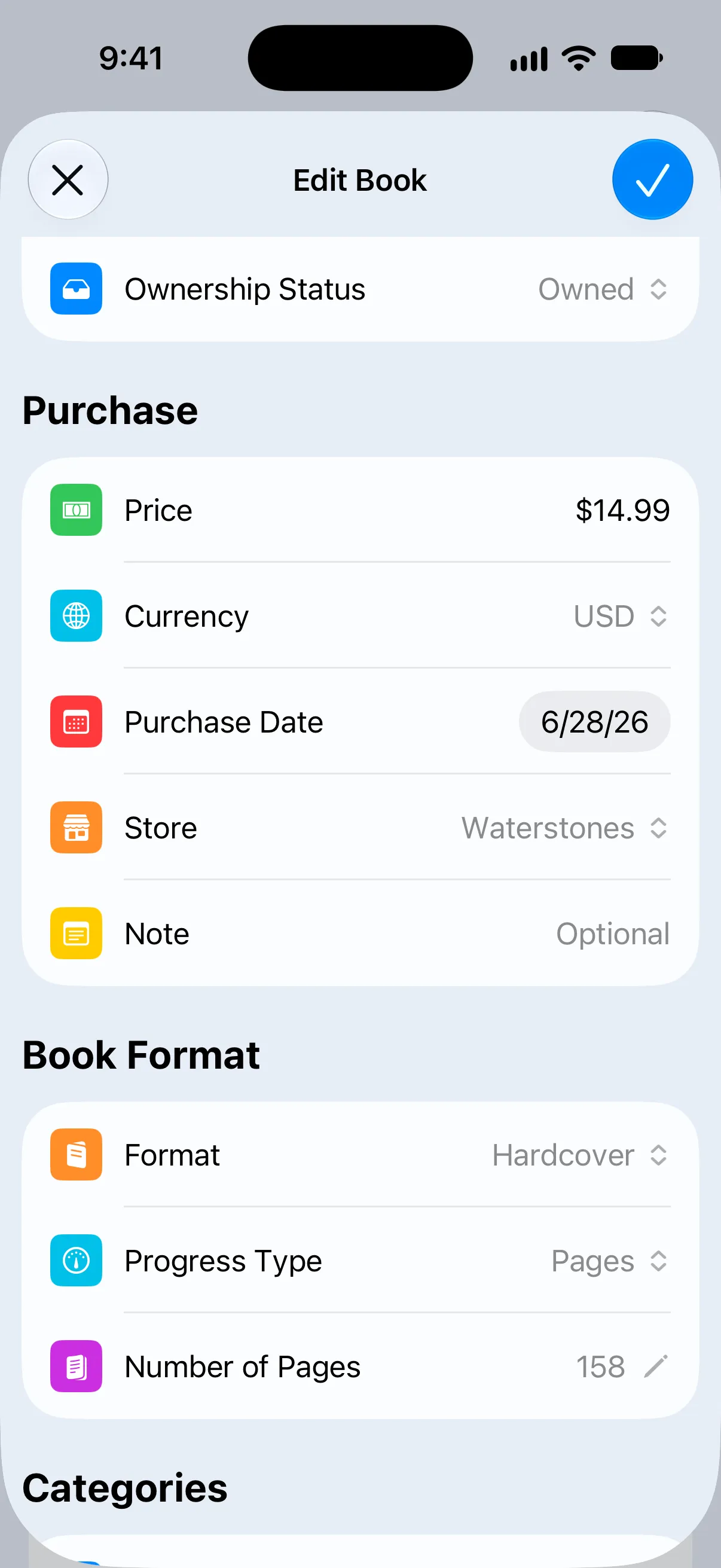
The purchase appears as Bought in the book’s History. To change it later, edit the book’s Purchase details. To remove it, clear those details and save.
Record more purchases and sales
The Purchase section shows the book’s latest purchase. Use History to record another purchase or a sale:
- Open the book’s page and scroll to History.
- Tap Add Event, then choose Bought or Sold under Event.
- Fill in the Date, Price, Currency, and Store or Sold To.
- Tap the checkmark to save.
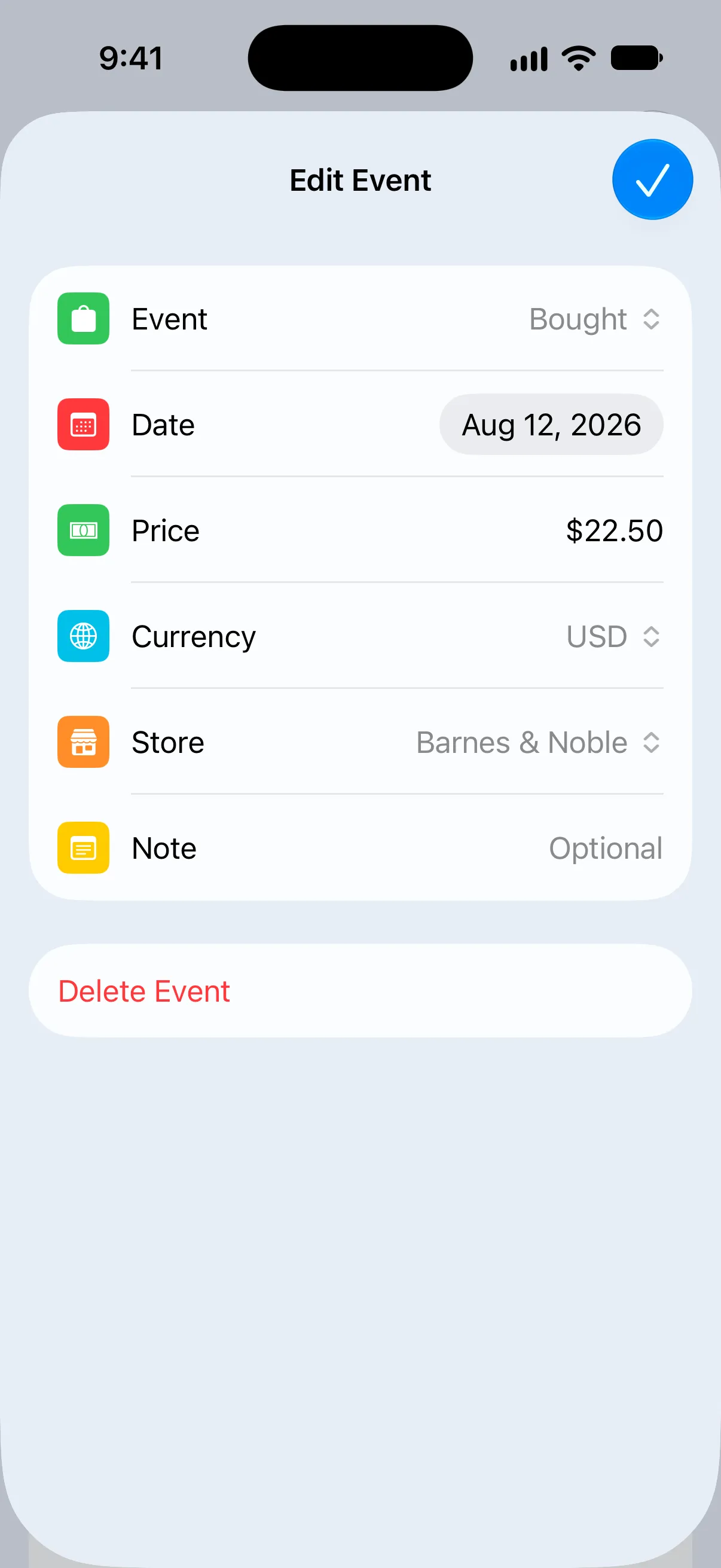
Recording a sale changes the book’s Ownership Status to Not Owned. You can also use History for gifts and loans. Learn about books you borrow or lend.
See what you’ve spent
- Tap Insights in the tab bar.
- Scroll below Statistics to the Money Spent card.
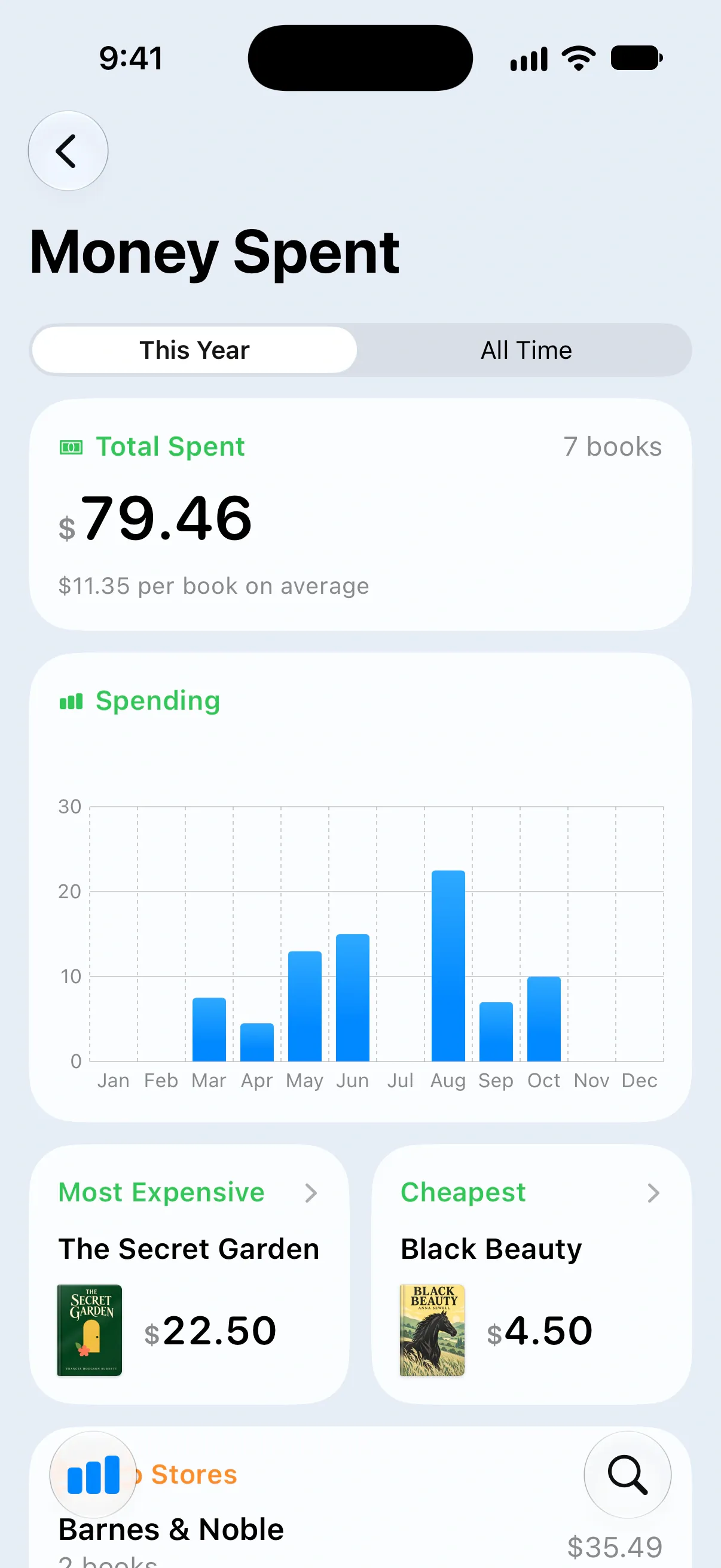
- Tap the card to open the Money Spent page.
The card appears once you’ve recorded a price for at least one purchase. It shows This Month, This Year, All Time and Average per Book at a glance.
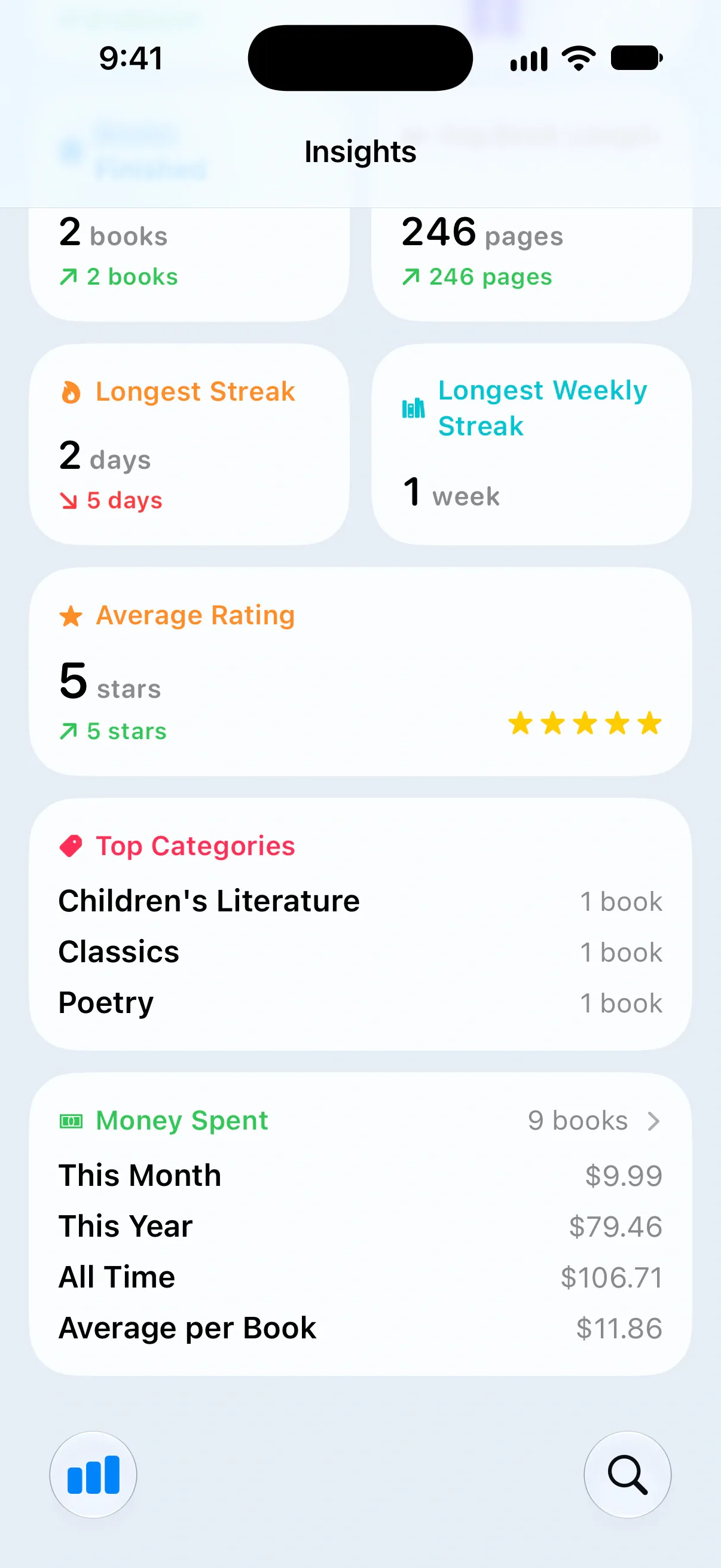
On the Money Spent page, switch between This Year and All Time:
- Total Spent: see the total, the number of books and the average cost per book.
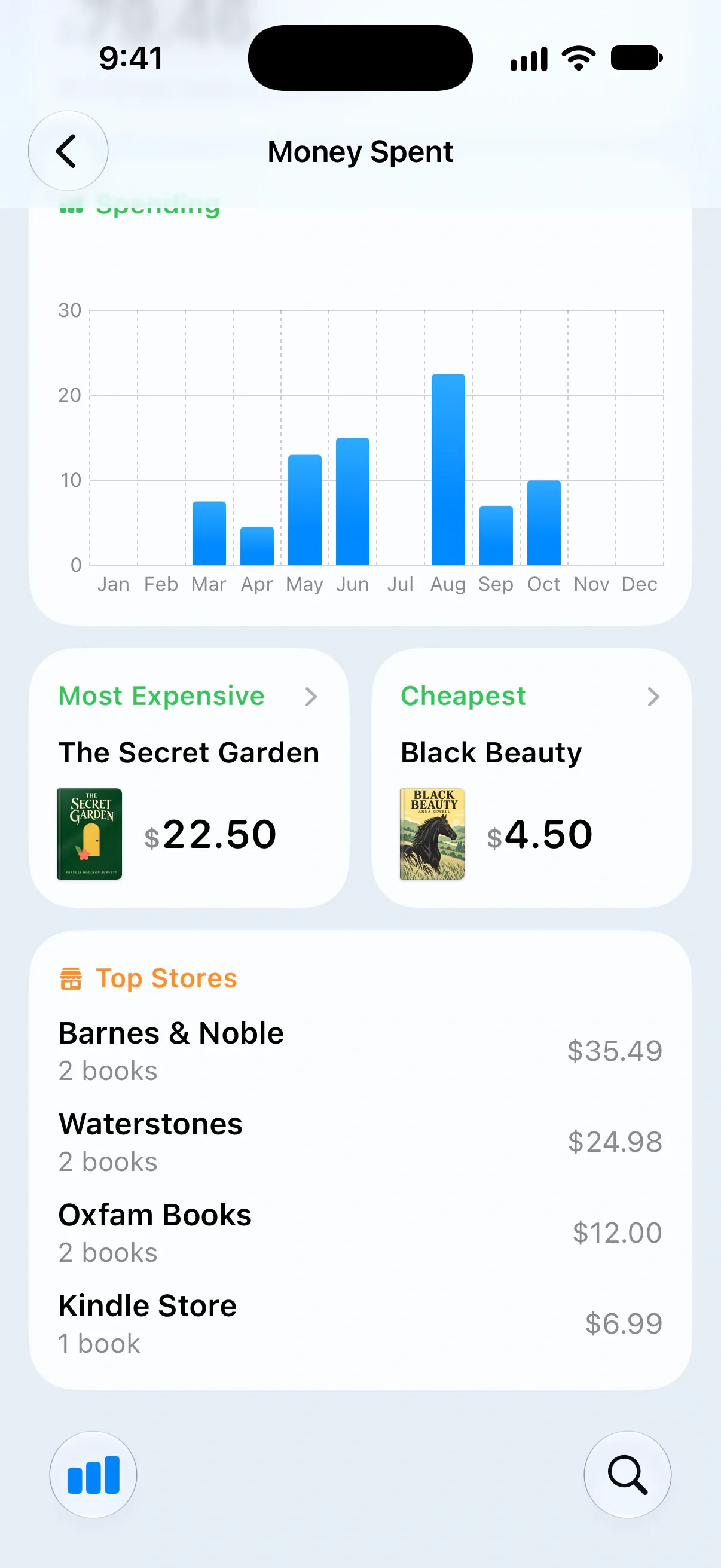
- Spending: look back month by month for this year, or year by year for all time.
- Most Expensive and Cheapest: revisit the books at either end of your spending. Tap one to open it.
- Top Stores: see up to five stores, how many books you bought at each and what you spent there.
What counts toward Money Spent
Money Spent tracks purchases, rather than the current value of your books:
- Only Bought events with a price count. Gifts and loans don’t add to your spending, and selling a book doesn’t reduce the total.
- A purchase without a date counts toward All Time, but not a particular month or year.
- Each currency has its own total. The chart, Most Expensive, Cheapest and the order of Top Stores use a single currency, either your device’s or the one you’ve spent the most in.
Purchases in imports and exports
When you import your library from a CSV file, match the relevant columns to Purchase Price, Purchase Date, Store and Purchase Note. For books imported as owned, Bookrise saves those details as a purchase.
When you export your library, the file includes each book’s latest purchase.
Questions and answers
Do I have to enter a purchase date?
No. If you don't know the date, you can leave it out. The purchase still counts toward All Time, but won't appear in This Month or This Year.
Can I record prices in different currencies?
Yes. Each purchase keeps the currency you chose, with separate totals for each currency. Charts and rankings use a single currency, either your device's or the one you've spent the most in.
Why can't I see the Money Spent card?
The card appears in Insights once you've recorded a price for at least one purchase. You'll find it below Statistics.
Related
- How to track books you borrow or lend Remember who has each book, when it's due back and when it was returned. Record loans in Bookrise and set a reminder for the due date.
- How to import your library from Goodreads, StoryGraph or a CSV file Bring your books and reading history into Bookrise from Goodreads, StoryGraph or a CSV export, without adding each book again.
- How to export your books and notes to a CSV file Save your books or notes as a CSV file to open in a spreadsheet or use in another app, and learn which details come with the export.