How to change the theme, colors and app icon
Choose light or dark mode, change Bookrise's colors and theme, and pick the background, progress style and app icon you like.
Make Bookrise feel like your own. All of its appearance options live in Settings → Appearance, and you can change them whenever you like.
Open Appearance
- On the Books tab, tap the gear button at the top right.
- Under Configuration, tap Appearance.
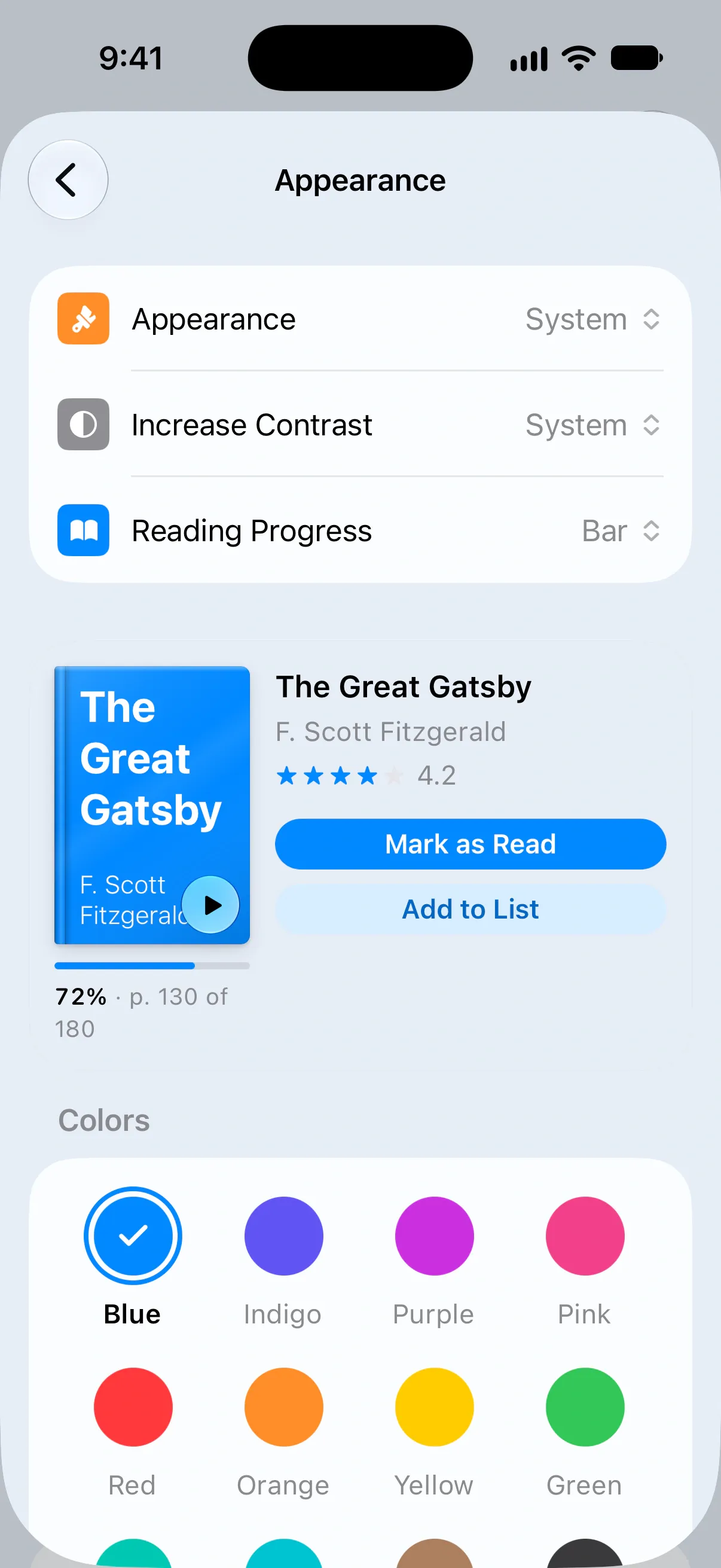
The preview card stays in view as you scroll, so you can see how your choices look before moving on to the next option.
Choose light or dark mode
Tap Appearance, then choose Light, Dark or System. System follows your device’s light and dark mode settings.
For stronger contrast, set Increase Contrast to On. Choose Off to turn it off, or System to follow your device’s contrast setting.
Choose how progress appears
Tap Reading Progress to change the progress indicator on book covers in Reading Now on the Books tab.
Choose Bar, Ring, Pill or Page Edge, or pick None to leave the covers without a progress indicator.
Pick a color or theme
Under Colors, tap a color to use it for buttons and highlights. For a coordinated look, choose a theme under Themes, such as Paper, Blossom, Sage or Lavender.
Midnight and Cyberpunk are always dark, regardless of your light or dark mode choice.
Your color and theme also apply to Bookrise widgets. Learn more about widgets.
Try a seasonal theme
The Seasonal group shows themes for Halloween, Holidays, Valentine’s Day and World Book Day, along with their dates. You can choose a seasonal theme while it’s available.
If you’d like Bookrise to change themes for you, turn on Automatic Seasonal Themes. It switches to each holiday theme while it lasts, then returns to your own theme.
Choose a background
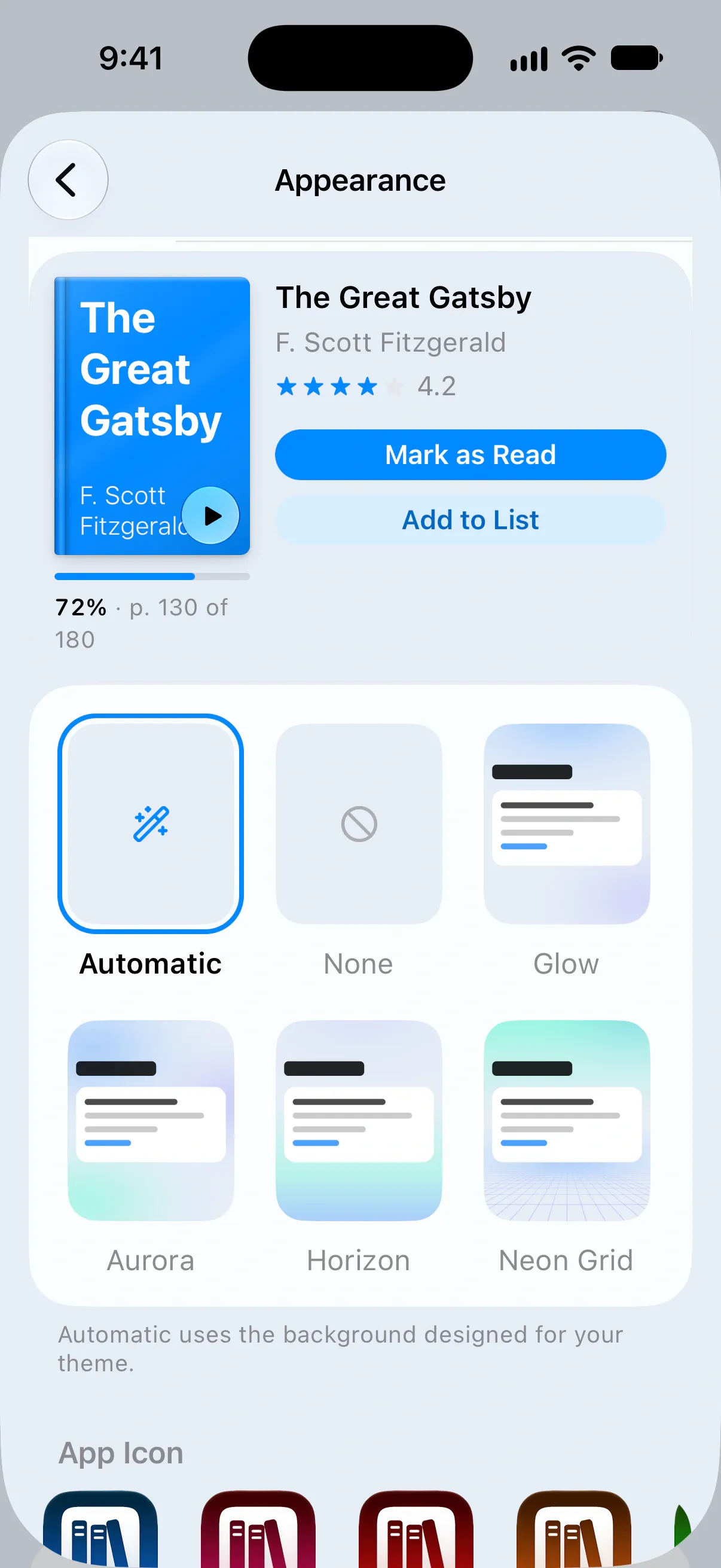
Under Background, choose Automatic to use the background designed for your theme, or None for no background. You can also pick Glow, Aurora, Horizon or Neon Grid.
If your background doesn’t appear, check Increase Contrast and your device’s Reduce Transparency setting. Bookrise hides backgrounds while either is on.
Change the app icon
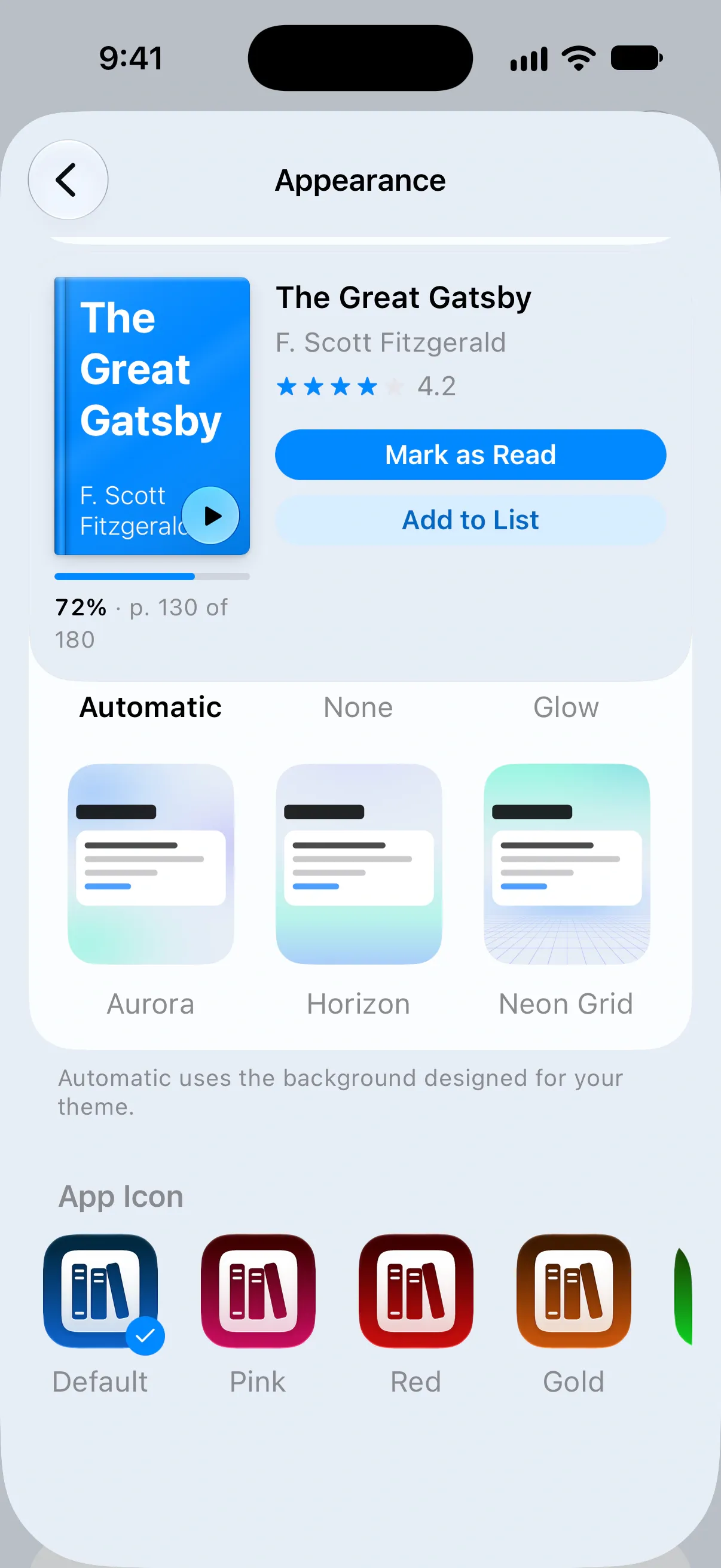
Under App Icon, tap the icon you’d like to see on your Home Screen: Default, Pink, Red, Gold or Green.
Questions and answers
Why can't I see my background?
Bookrise hides backgrounds when Increase Contrast or your device's Reduce Transparency setting is on. Check those settings if your chosen background isn't showing.
Can Bookrise switch between light and dark mode with my device?
Yes. In Settings → Appearance, tap Appearance and choose System. Midnight and Cyberpunk stay dark because that's part of their design.
Can I rearrange the sections on the Books tab?
No. You can change colors, themes and how reading progress looks, but the order of the Books tab sections stays the same.
Related
- Getting started with Bookrise Add your first book, mark what you're reading and start tracking your progress in Bookrise.
- Add Bookrise widgets to your Home Screen and Lock Screen Keep your current book, reading goals and notes in view. Add Bookrise widgets, log pages and choose what each widget shows.