How to import your library from Goodreads, StoryGraph or a CSV file
Bring your books and reading history into Bookrise from Goodreads, StoryGraph or a CSV export, without adding each book again.
You don’t have to rebuild your library one book at a time. Import a CSV export from your old reading app, and Bookrise brings over the books and details in the file, including reading status, ratings, reviews and shelves.
If you already have the export, save it somewhere you can find on your device, such as Files or iCloud Drive. If not, the import guides in Bookrise will help you get it.
Step 1: Open the import guide
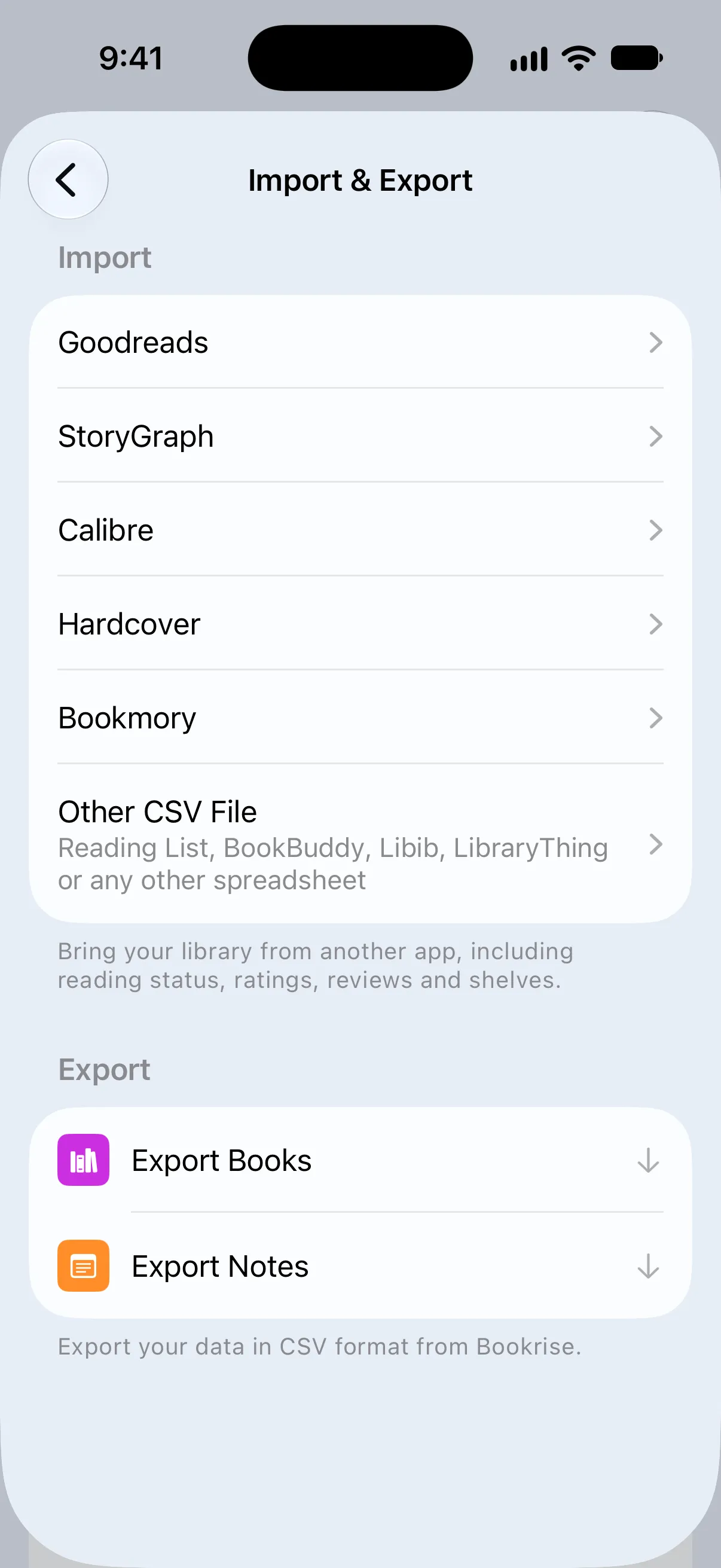
- Open Settings and tap Import & Export.
- Under Import, choose Goodreads, StoryGraph, Calibre, Hardcover or Bookmory. If your app isn’t listed, choose Other CSV File.

Step 2: Get your export file
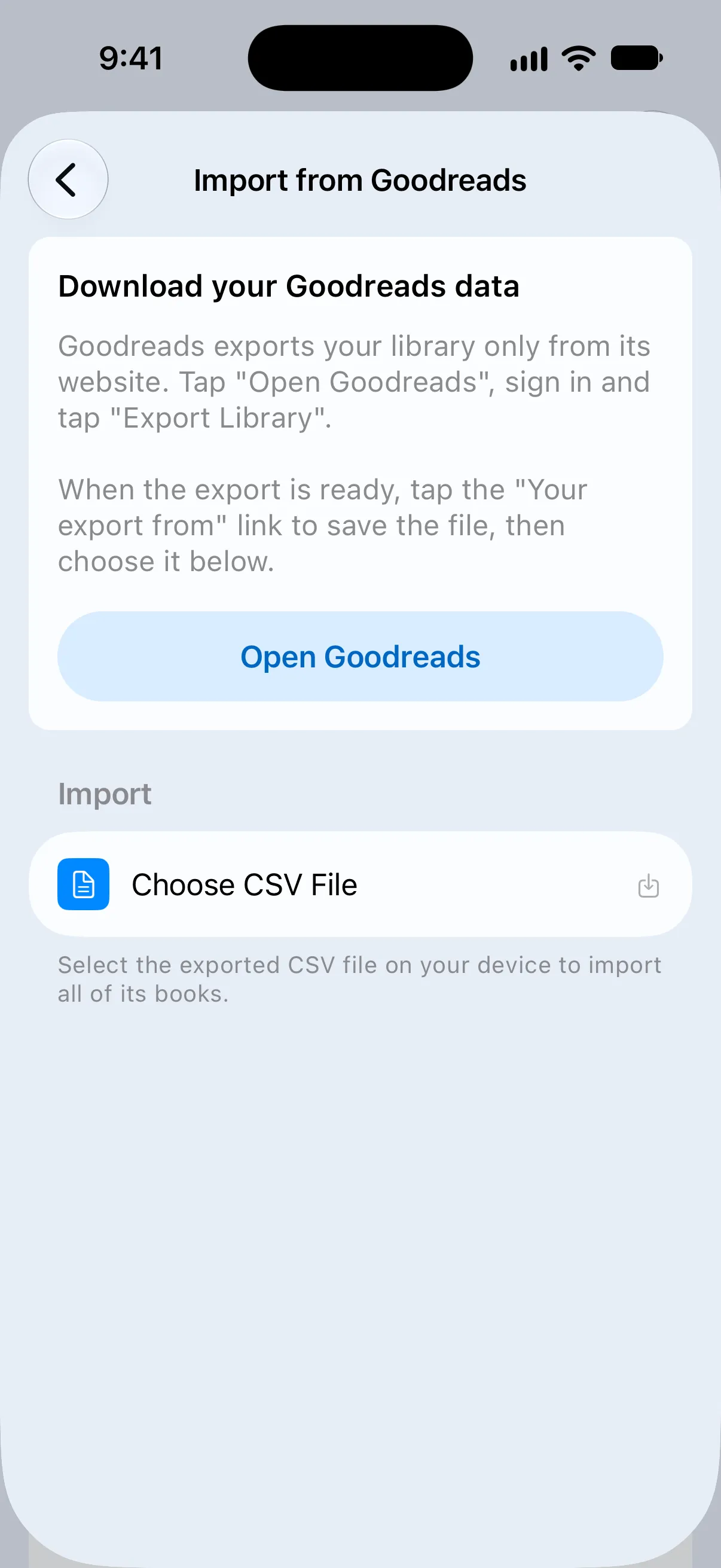
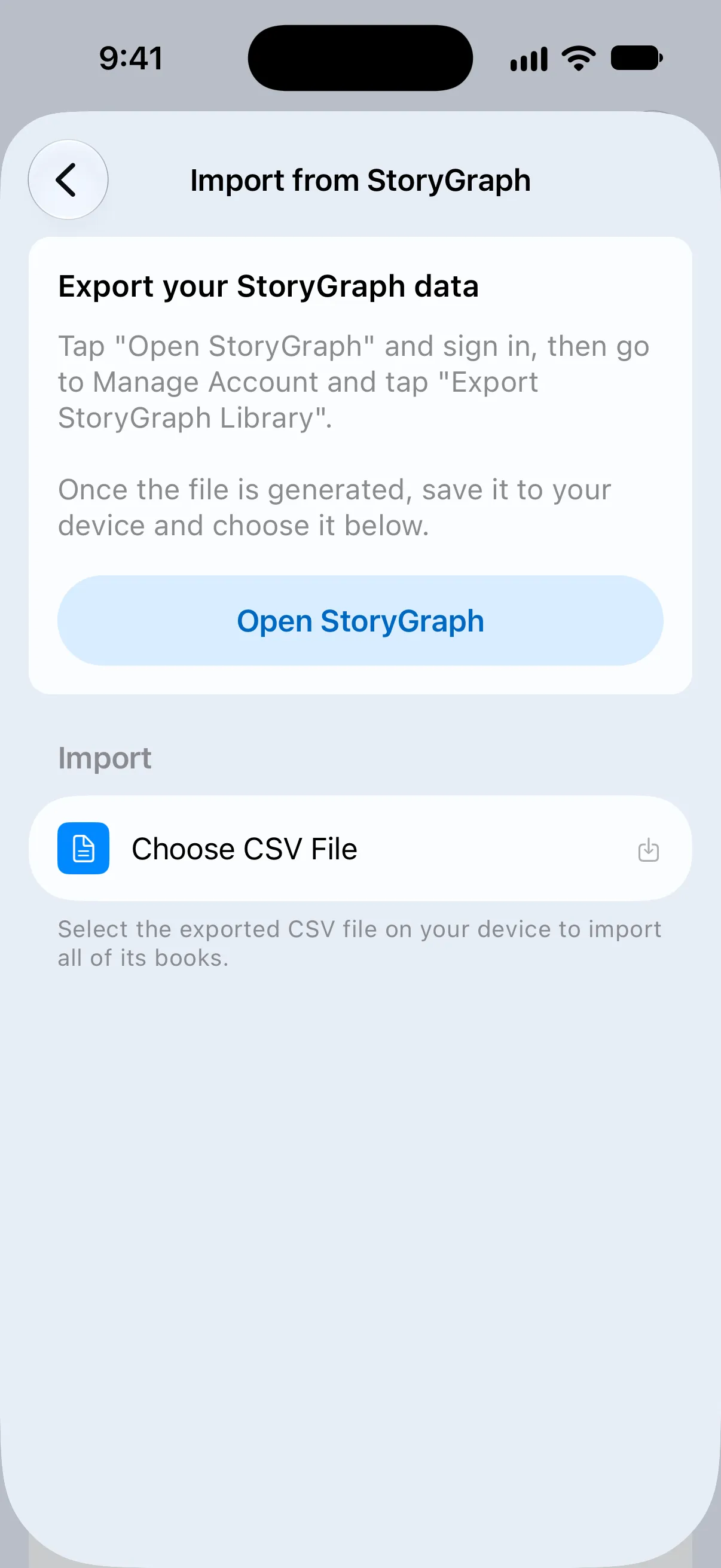
Each named app opens a guide with instructions for exporting your books. Goodreads, StoryGraph and Hardcover also have a button to open their website.
- Goodreads: tap Open Goodreads, sign in and tap Export Library on the website. When it’s ready, use the Your export from link to save the file. Goodreads exports are available from its website.
- StoryGraph: tap Open StoryGraph and sign in. Go to Manage Account, tap Export StoryGraph Library and save the file when it’s ready.
- Hardcover: tap Open Hardcover and sign in. Open your account exports, start a new export and save the CSV file when it’s ready.
- Calibre: on your computer, open Convert books and choose Create a catalog of the books in your calibre library. Pick the CSV format, then move the file to your device.
- Bookmory: export your books as an Excel file, then convert it to CSV. Follow the Bookmory steps.
Step 3: Import your books
- Return to Bookrise, tap Choose CSV File and choose your export.
- Wait while Bookrise reads and imports the file. You’ll see Reading File, Parsing Books, Importing Books and Looking for Covers along the way.
- At All Done!, check the summary to see how many books were added or were already in your library, then tap Done.
Bookrise can recognize supported exports from the file itself, even if you chose a different app. If it needs your help, Match Columns opens so you can choose which column contains each detail. Learn how to match columns and fix import problems.
Import from other apps
If your old app isn’t listed, or you keep your books in a spreadsheet, save the books as a CSV file and choose Other CSV File. The file needs a column of book titles. Bookrise matches the columns it recognizes and lets you choose the rest.
Exports from Reading List, BookBuddy, Libib, LibraryThing, BookWyrm, Open Library and Bookshelf are recognized automatically. You can also import a Bookrise books export from another device. For other apps, such as Book Tracker, use their CSV export with Other CSV File.
What gets imported
What comes with your books depends on what’s in the export:
- Book details: title, subtitle, authors, ISBN, pages, publisher, publication date, format, series and description.
- Reading history: reading status, the dates you added, started and finished a book, and earlier reads. Re-reads become separate reads, and books you’re reading keep their current page.
- Ratings and reviews: your star rating, review, moods and whether you’d read the book again. Ratings out of 10 or 100 are converted to five stars.
- Your groups and notes: shelves, tags and lists become collections; genres become categories; and private notes become notes on the book. A “favorites” shelf marks books as favorites.
- Ownership and purchases: whether you own the book, plus its purchase price, date and store.
An import keeps books already in your library as they are. It skips them rather than replacing your changes. If the same book appears several times in the file, such as once for each re-read, Bookrise creates one book with its reading history.
Import while setting up Bookrise
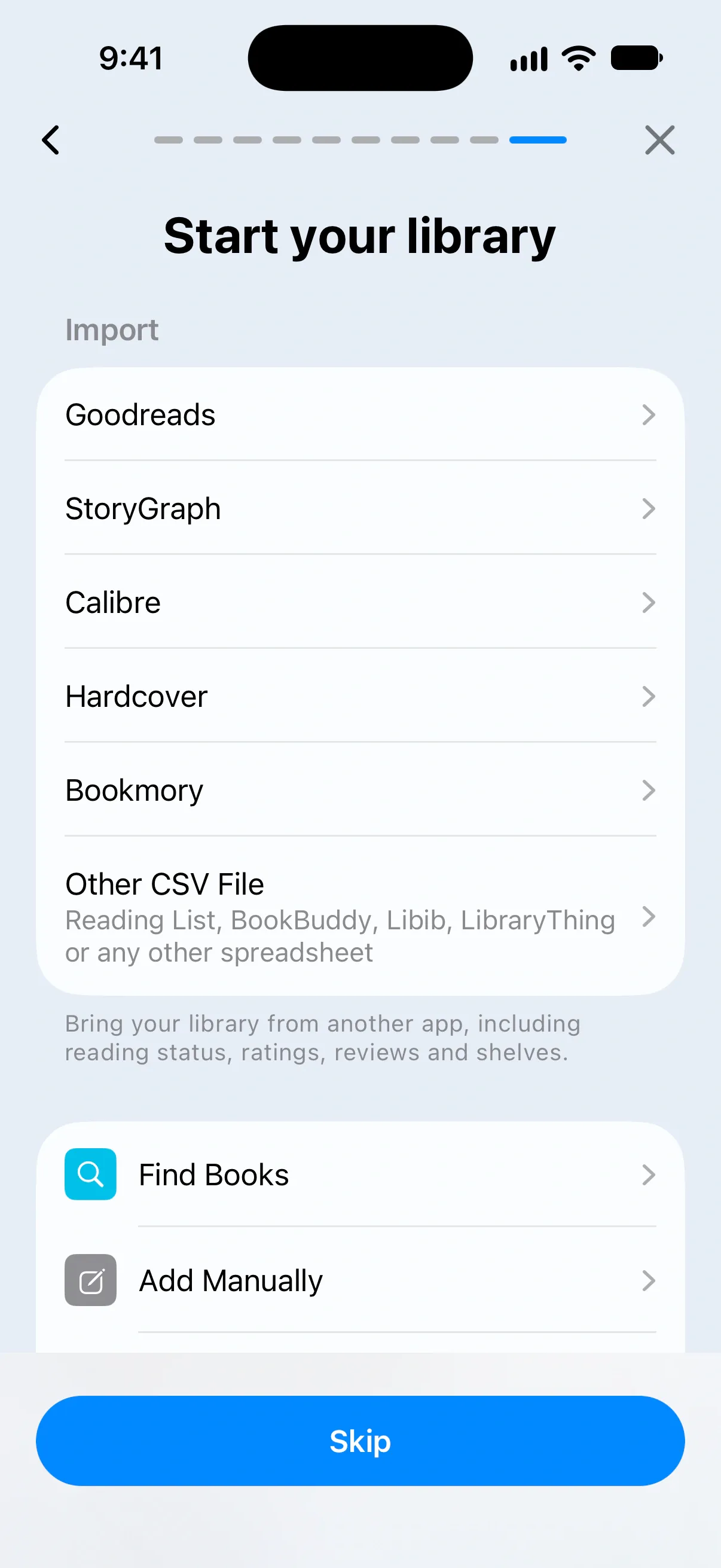
You can also import during setup. On Start your library, choose your old app under Import and follow its guide. If you’d rather do this later, tap Skip. The same options will be in Settings → Import & Export whenever you’re ready.
Questions and answers
Can I import my Goodreads library into Bookrise?
Yes. Export your library from the Goodreads website, then open Settings → Import & Export → Goodreads in Bookrise and tap Choose CSV File. Bookrise brings over the shelves, ratings, reviews and reading history included in your export.
Will importing the same file twice create duplicate books?
No. Bookrise skips books already in your library, matching them by ISBN or by title and author. It keeps your existing books as they are, and the import summary tells you how many were skipped.
Will my imported books have covers?
Bookrise looks up covers after importing your books, using the ISBN or the title and author. Covers load in the background, so some may appear a little later. You'll need an internet connection for the lookup.
Related
- How to fix CSV import problems in Bookrise Get help with CSV imports in Bookrise, from matching your book titles to fixing file formats, import errors and mixed-up dates.
- How to export your books and notes to a CSV file Save your books or notes as a CSV file to open in a spreadsheet or use in another app, and learn which details come with the export.
- Getting started with Bookrise Add your first book, mark what you're reading and start tracking your progress in Bookrise.