How to add a book to your library
Add a book to Bookrise by searching, scanning its barcode, using a link to its page online or entering the details yourself.
Adding a new discovery or an old favorite? Search for the book, scan its barcode or use a link to fill in the details. If you can’t find it online, enter the details yourself. A title is enough to get started.
Searching, scanning barcodes and filling in details from links need an internet connection. You can add a book manually while offline.
Search for a book
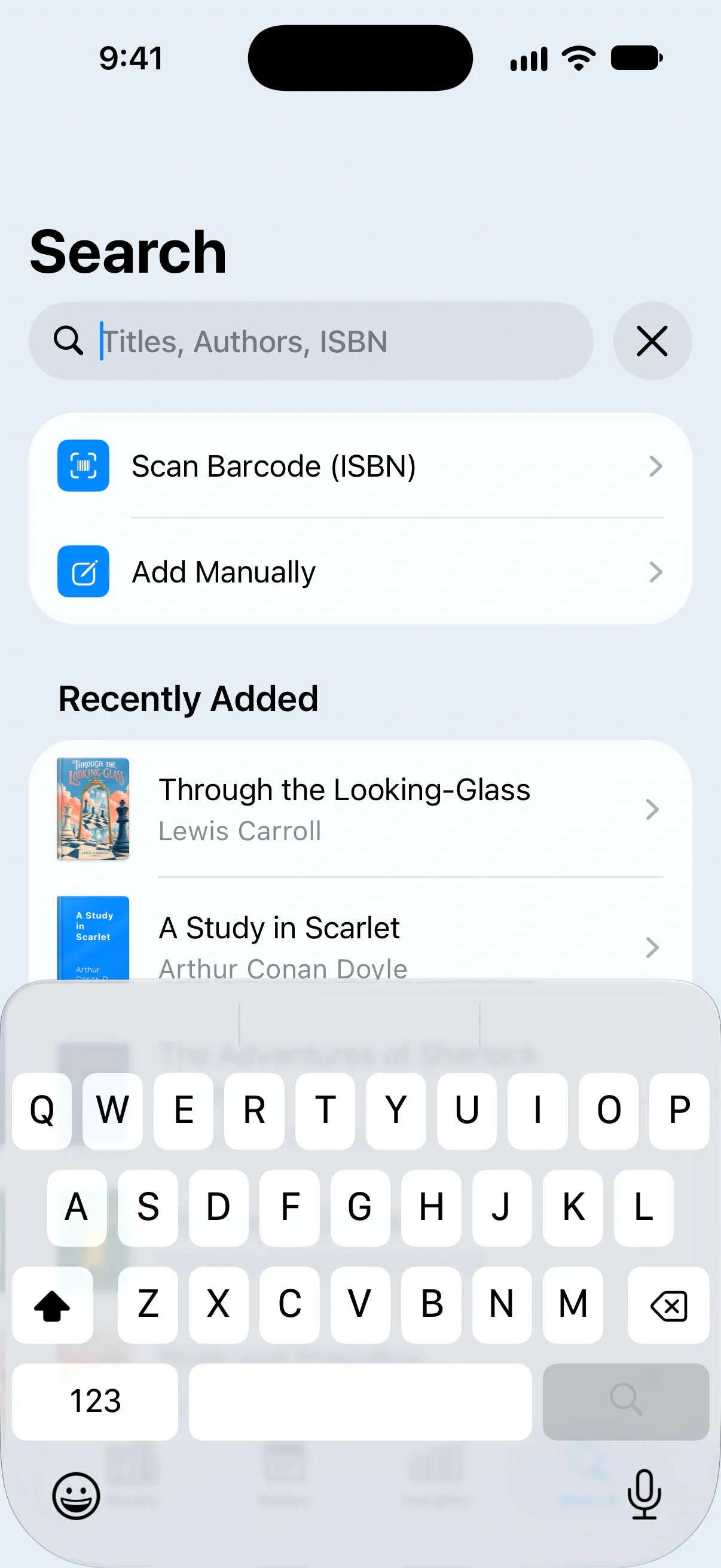
- Tap Search in the tab bar, or Find Books on the Books tab.
- Enter a title, author or ISBN in Titles, Authors, ISBN.
- If the results show books from your own library, tap Search Online for “…”, or press Search on the keyboard, to look further.
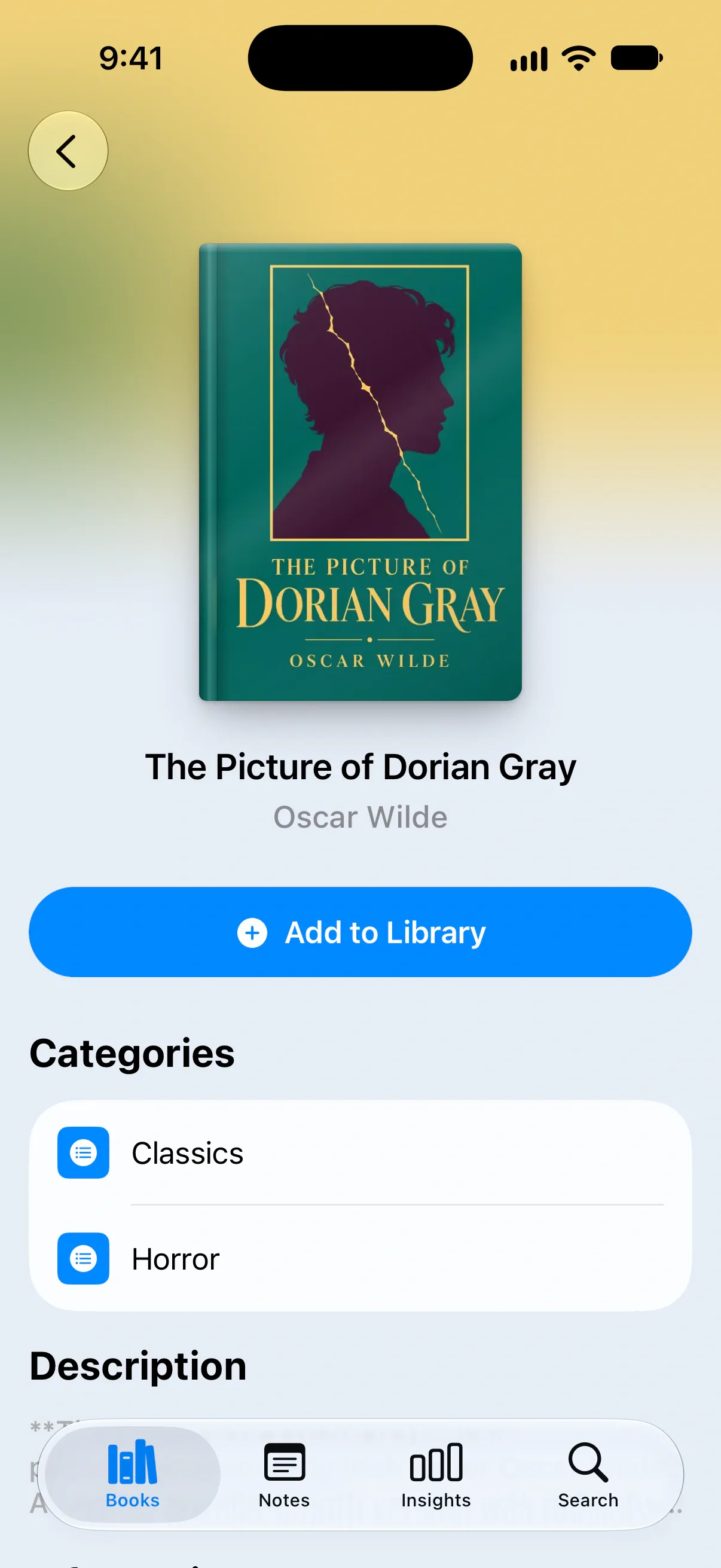
- Tap the book you want to open its page.
Bookrise shows matching books from your own library first. If there are no matches, it searches online automatically.
Save the book to your library
Once you’ve found the book:
- On its page, tap Add to Library.
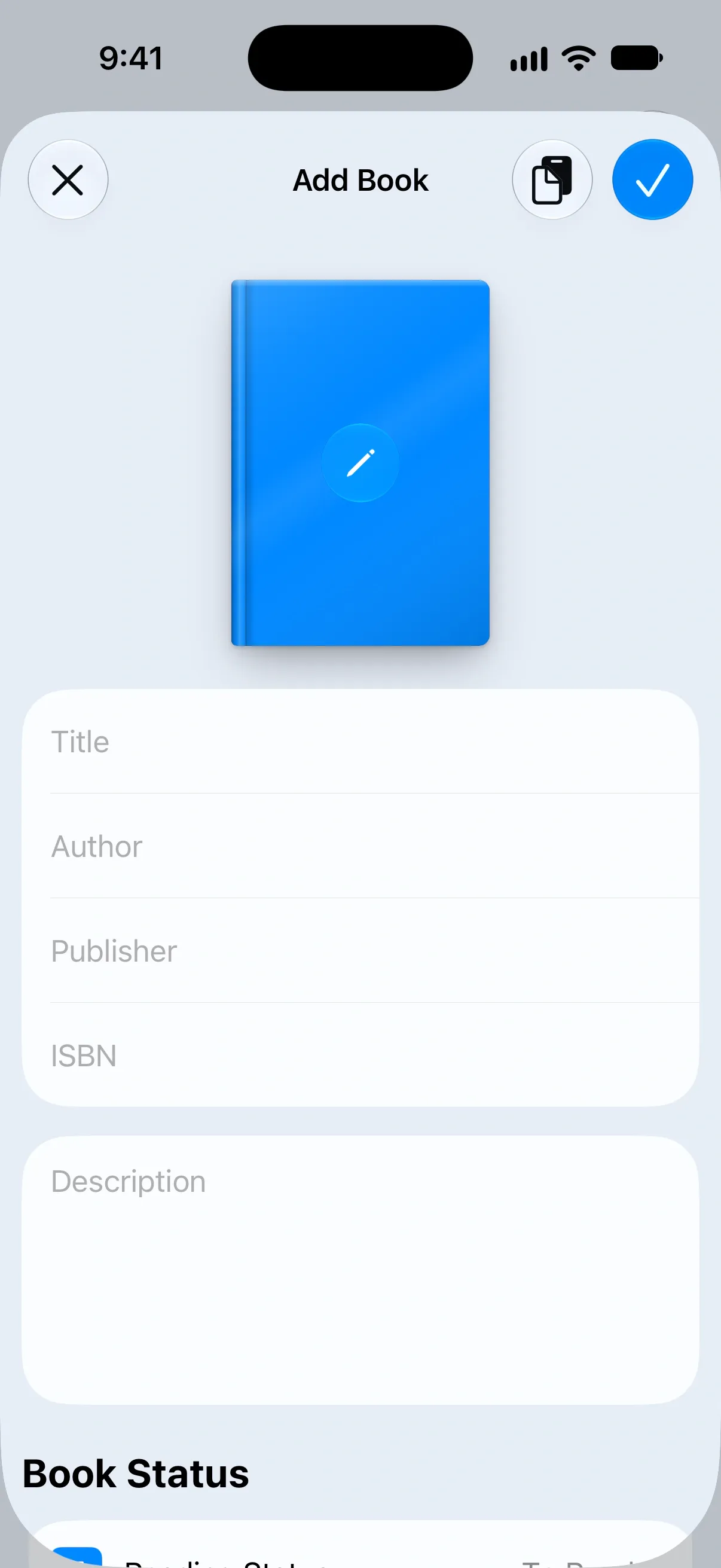
- Check the details in Add Book. You can change anything before saving, including the Reading Status.
- Tap the checkmark to save.
Can’t find the right book in the results? Tap Add Book Manually below them. Bookrise uses your search as the title, and you can fill in the rest.
Add a book manually
- Tap Add Manually on the Books tab or the Search screen.
- Enter the Title and any other details you know.
- Tap the checkmark to save.
Only the title is required. Add whichever details are useful to you:
- Add the details you have. Fill in the Author, Publisher, ISBN or Description.
- Choose a cover. Tap Cover to search for an image, paste an image or link, or use a photo. Find out how to change a cover.
- Mark where you are with the book. Under Book Status, choose a Reading Status. New books start as To Read unless you change it.
- Keep track of ownership. Set Ownership Status to Borrowed, Not Owned or Owned. For an owned book, you can also record its price, purchase date and store under Purchase.
- Choose the format and progress type. Under Book Format, choose Paperback, Hardcover, eBook or Audiobook. For print books and ebooks, enter the Number of Pages and choose Pages or Percentage under Progress Type. Audiobooks use Audiobook Length instead.
- Pick up where you are now. If you’ve already started the book, enter Pages Already Read or Percentage Already Read, depending on how you’re tracking it.
- Organize as you go. Add the book to Categories, Collections or a Series.
Fill in the details from a link
Found a book online? Use its page to fill in the details and cover. This works with Goodreads, bookstores, publishers and most other websites:
- Copy the link to the book’s page.
- Tap Add Manually in Bookrise.
- Before entering any details, tap the clipboard button at the top, Fill In from a Link.
- Paste the link.
Check the details Bookrise finds, make any changes, then tap the checkmark to save.
Scan the barcode
- Tap Scan Barcode (ISBN) on the Books tab or the Search screen.
- Point your camera at the barcode on the back of the book. In low light, tap the flashlight button at the top.
- When the book appears at the bottom of the screen, tap it to open its page.
- Tap Add to Library, check the details, then tap the checkmark to save.
Add books from other apps
- Use the Share menu. In Safari or another app, share a link to a book’s page, or text containing an ISBN, and choose Bookrise. The Add Book form opens with the details Bookrise finds.
- Ask Siri. Say “Add a book by ISBN in Bookrise”, or use the Add Book by ISBN shortcut. Learn more about Siri and Shortcuts.
Bringing a whole library from another app? Import it from a CSV file instead of adding books one at a time.
Questions and answers
What if I can't find a book in search?
You can still add it. Tap Add Book Manually below the results, or Add Manually on the Books tab, and fill in what you know. Only the title is required.
Can I add a book from a Goodreads link?
Yes. Copy the link to the book's page, open Add Manually and tap Fill In from a Link before entering any details. You can also use book pages from bookstores, publishers and most other websites.
The barcode scanner says Missing Permission. What do I do?
Bookrise needs camera access to scan a barcode. Tap Grant Permission to open your device settings, then allow camera access for Bookrise.
Related
- Getting started with Bookrise Add your first book, mark what you're reading and start tracking your progress in Bookrise.
- How to change a book cover Give a book the cover you recognize. Find another cover online, use an image or photo, and manage the cover files saved to iCloud Drive.
- How to import your library from Goodreads, StoryGraph or a CSV file Bring your books and reading history into Bookrise from Goodreads, StoryGraph or a CSV export, without adding each book again.
- How to use Bookrise with Siri and Shortcuts Use Siri to start a reading session, log your progress or check your streak, and add Bookrise actions to your own shortcuts.