How Bookrise works with iPhone features
Use Bookrise from your Home Screen, Lock Screen, Siri and Apple Watch. Find quick ways to track reading, add books and save quotes on iPhone.
On this page
- Keep your book on the Home Screen
- Add a quick control
- Ask Siri to help
- Follow a session from the Lock Screen
- Choose how your reading timer alerts you
- Read from your wrist
- Find a book with iPhone search
- Add books and notes from other apps
- Backups and cover photos in iCloud
- Questions and answers
- Related
You don’t always need to open Bookrise to keep up with your reading. Check a widget, ask Siri to start a session or save a quote from another app. Here’s how Bookrise works with the features already on your iPhone. Many of these features also work on iPad.
Keep your book on the Home Screen
Add a widget for your current book, goals, streaks or notes to the Home Screen or Lock Screen. The Currently Reading widget lets you add pages and start a session, so you can get back to your book quickly. Choose and set up a widget.
Add a quick control
On iOS 18 or later, you can add Bookrise controls to Control Center, the Lock Screen or the Action button. Use Reading to start or pause a session, or choose a control that opens the scanner or a book list. Set up Bookrise controls.
Ask Siri to help
Try “Start reading in Bookrise”, “What am I reading in Bookrise” or “What’s my reading streak in Bookrise”. You can also use Bookrise actions in the Shortcuts app to build a routine that suits you. See what you can ask Siri.
Follow a session from the Lock Screen
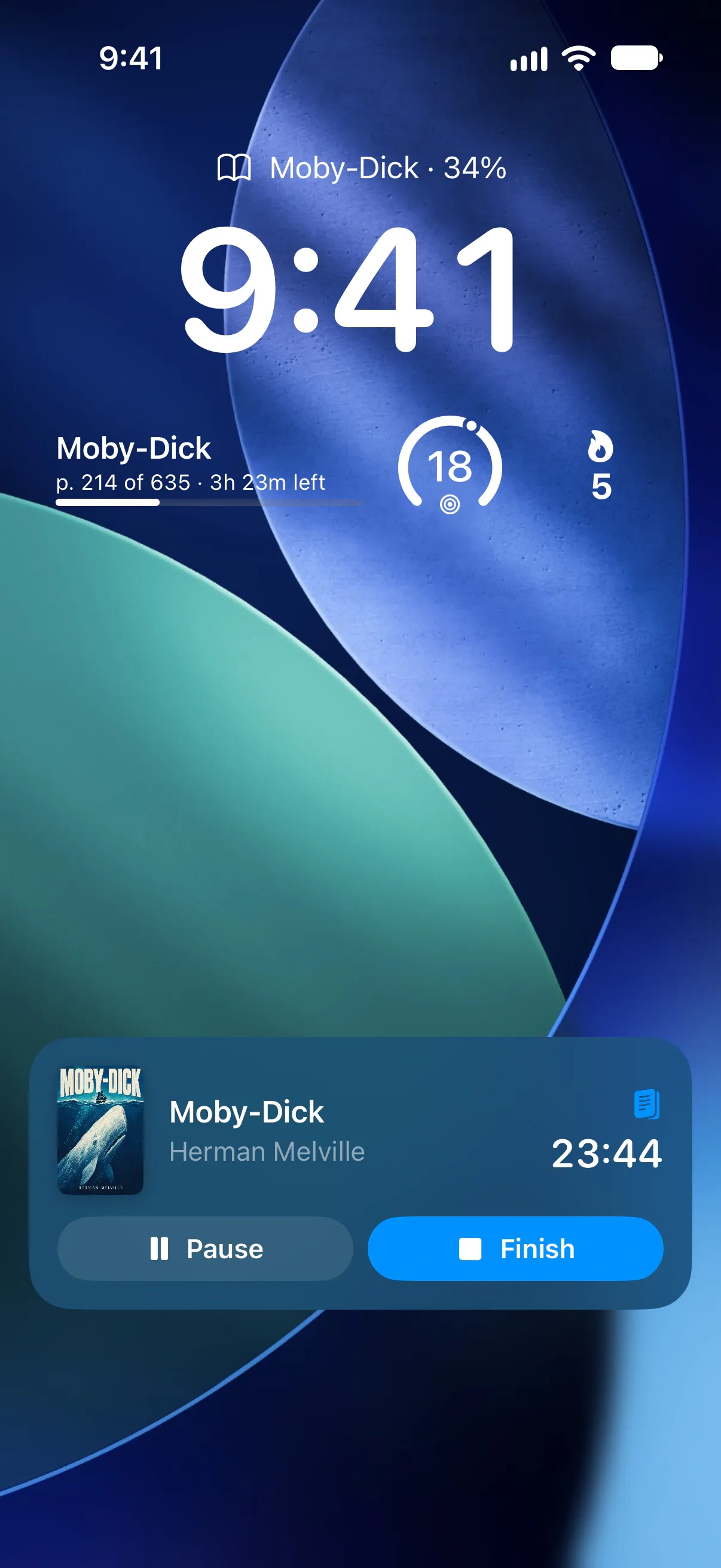
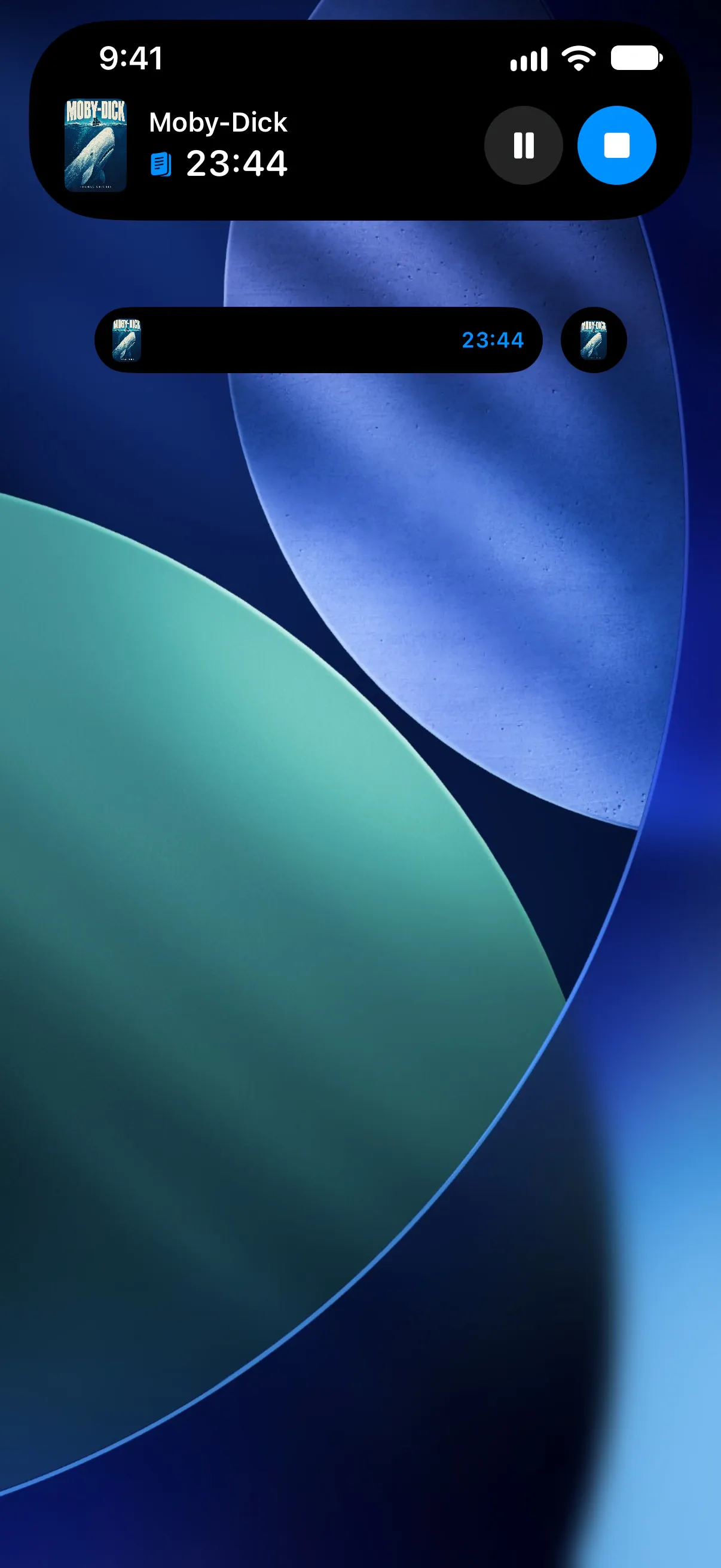
While a session runs, a Live Activity shows your book and reading time on the Lock Screen and in the Dynamic Island. Use Pause to take a break, or Finish to open Bookrise and save your progress.
The Live Activity works whether you started the session in Bookrise, from a widget, with a control or through Siri.
Choose how your reading timer alerts you
Set a reading timer in Reading Mode with Set Timer to get an alert after the amount of time you choose.
On iOS 26 or later, the default alert rings like a clock alarm and has a Stop button. Bookrise asks for permission to set alarms the first time. If you’d prefer a notification, open Settings → Reading Timer Alert and choose Notification. Earlier iOS versions use a notification.
Read from your wrist
Bookrise on Apple Watch shows today’s goal, your streak and your current books. Time a session or update your progress from your wrist, even when your iPhone isn’t nearby. You can also add Bookrise complications to your watch face. Get started on Apple Watch.
Find a book with iPhone search
Your books appear in Spotlight, the search built into your iPhone, with the author and your reading progress. Search for a book, then tap the result to open it in Bookrise.
Add books and notes from other apps
Found something you’d like to keep? Tap Share in Safari, Photos or another app and choose Bookrise:
- A book link or ISBN opens Add Book with the details Bookrise finds.
- Selected text opens a new note with that text as a quote.
- A photo of a page opens a note and scans the photo for text.
Learn about adding books or saving notes and quotes.
Backups and cover photos in iCloud
- iCloud Backups keeps a copy of your library in iCloud. Bookrise makes a backup automatically each day you open the app, as long as your library has a book in it.
- iCloud Covers stores your own cover photos in the Bookrise folder in iCloud Drive. Manage these files in Settings → iCloud Covers. Learn about book covers.
These files use iCloud, but your library itself doesn’t automatically sync between devices. To move it, restore a backup on the new device.
Questions and answers
Can I start reading without opening Bookrise?
Yes. Start a session from a widget, the Reading control or Siri, then pause or resume it from the Lock Screen. Finishing opens Bookrise so you can save your progress.
Can I find my books in iPhone search?
Yes. Your library's books appear in Spotlight, the search built into your iPhone. Tap a book in the results to open it in Bookrise.
Does Bookrise sync my library through iCloud?
No. Your library stays on your device. Bookrise saves backups and your own cover photos to iCloud. To move your library to another device, restore a backup there.
Related
- Add Bookrise widgets to your Home Screen and Lock Screen Keep your current book, reading goals and notes in view. Add Bookrise widgets, log pages and choose what each widget shows.
- How to use Bookrise with Siri and Shortcuts Use Siri to start a reading session, log your progress or check your streak, and add Bookrise actions to your own shortcuts.
- How to use Bookrise on Apple Watch Use Bookrise on Apple Watch to check your goals, update your progress and time a reading session, even when your iPhone isn't nearby.