Add Bookrise widgets to your Home Screen and Lock Screen
Keep your current book, reading goals and notes in view. Add Bookrise widgets, log pages and choose what each widget shows.
On this page
Keep your current book, a reading goal or a favorite quote close by with a Bookrise widget. You can check your progress at a glance, and some widgets let you log pages or start a reading session right there.
Widgets are available on iPhone and iPad.
Add a Home Screen widget
- Touch and hold an empty area of your Home Screen until the apps jiggle.
- Tap Edit → Add Widget in the top-left corner. On iOS 17, tap +.
- Search for Bookrise and tap it.
- Swipe through the widgets and sizes, then tap Add Widget on the one you want.
Add a Lock Screen widget
- Touch and hold your Lock Screen, then tap Customize → Lock Screen.
- Tap the space for widgets under the clock.
- Choose a Bookrise widget.
Home Screen widgets
| Widget | What it shows | Sizes |
|---|---|---|
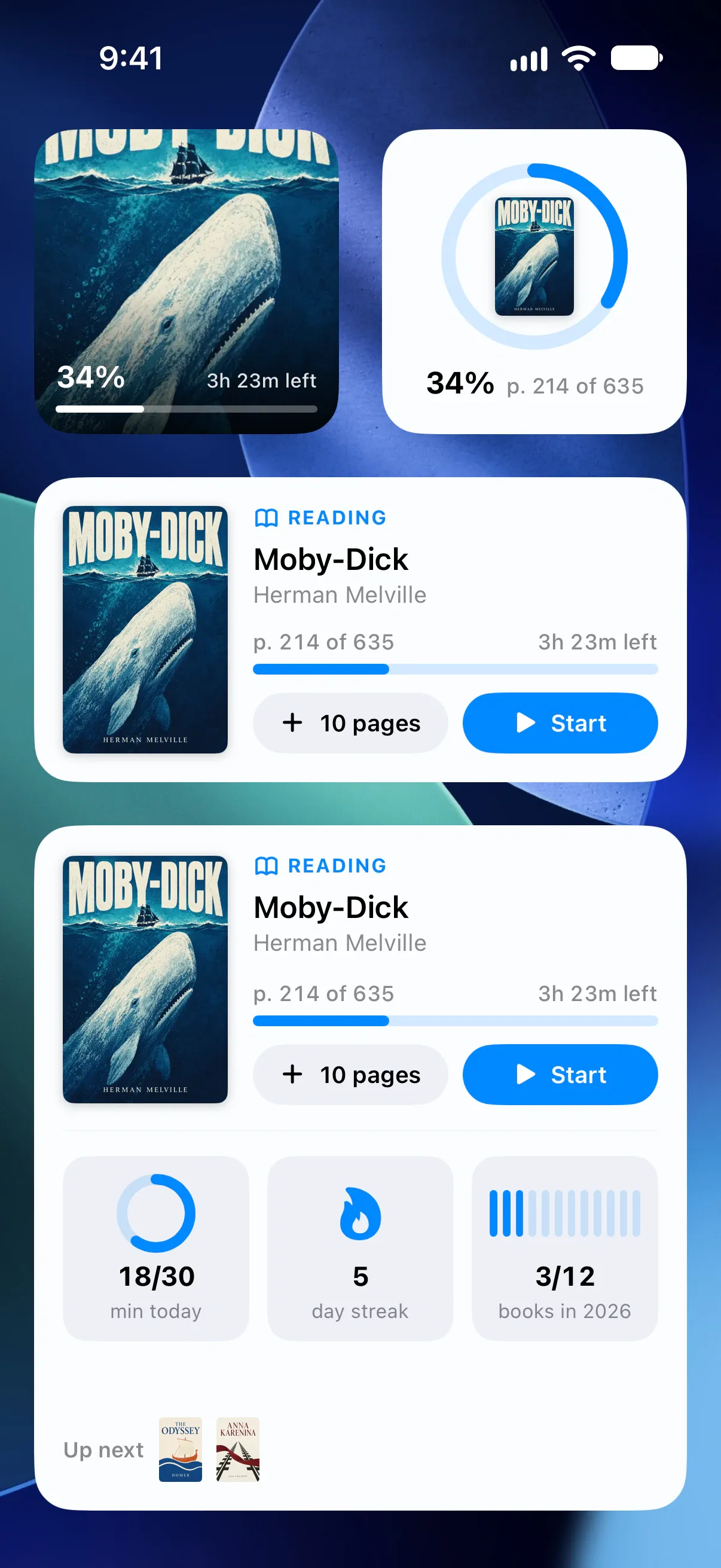
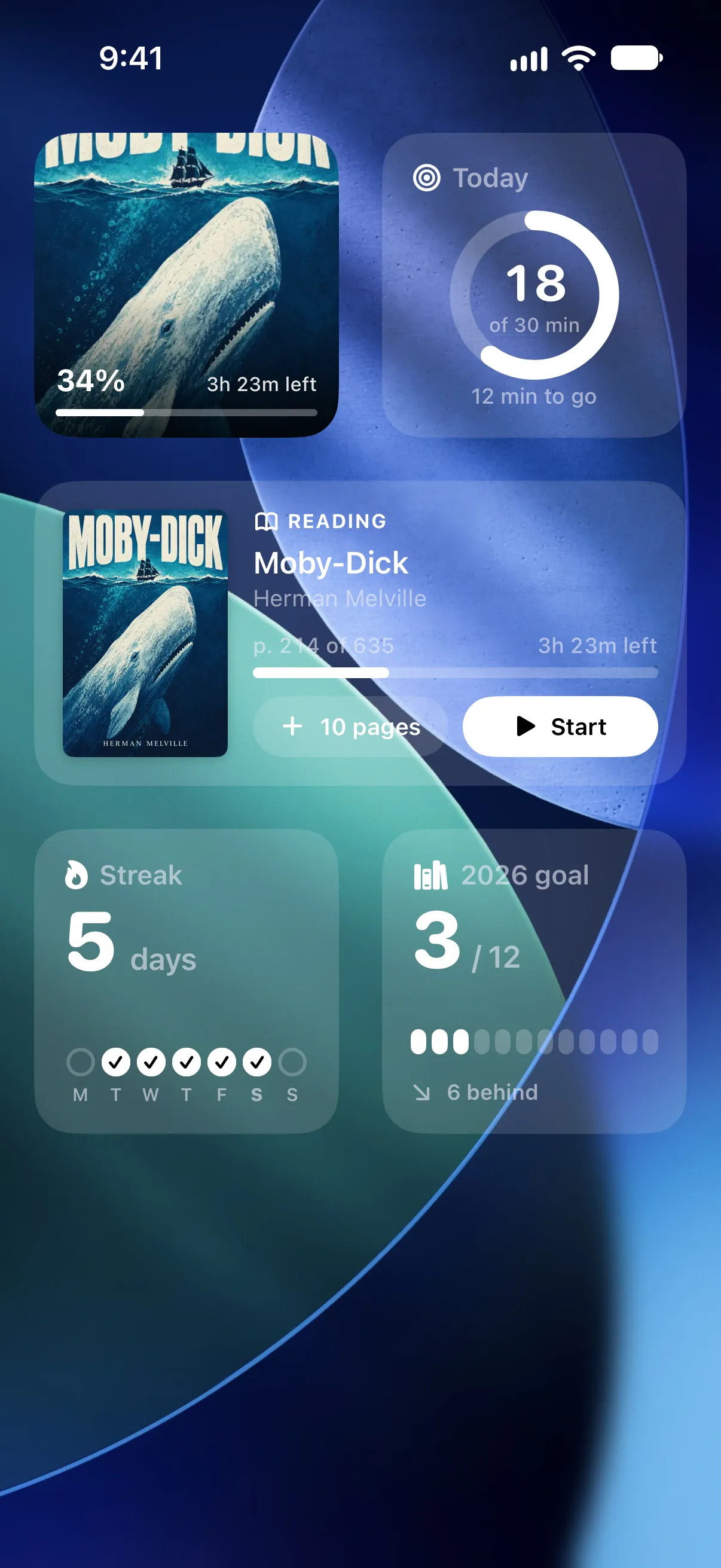
| Currently Reading | Your book, reading progress and estimated time left | Small, medium, large |
| Reading Shelf | The books you’re reading, with progress for each | Medium, large |
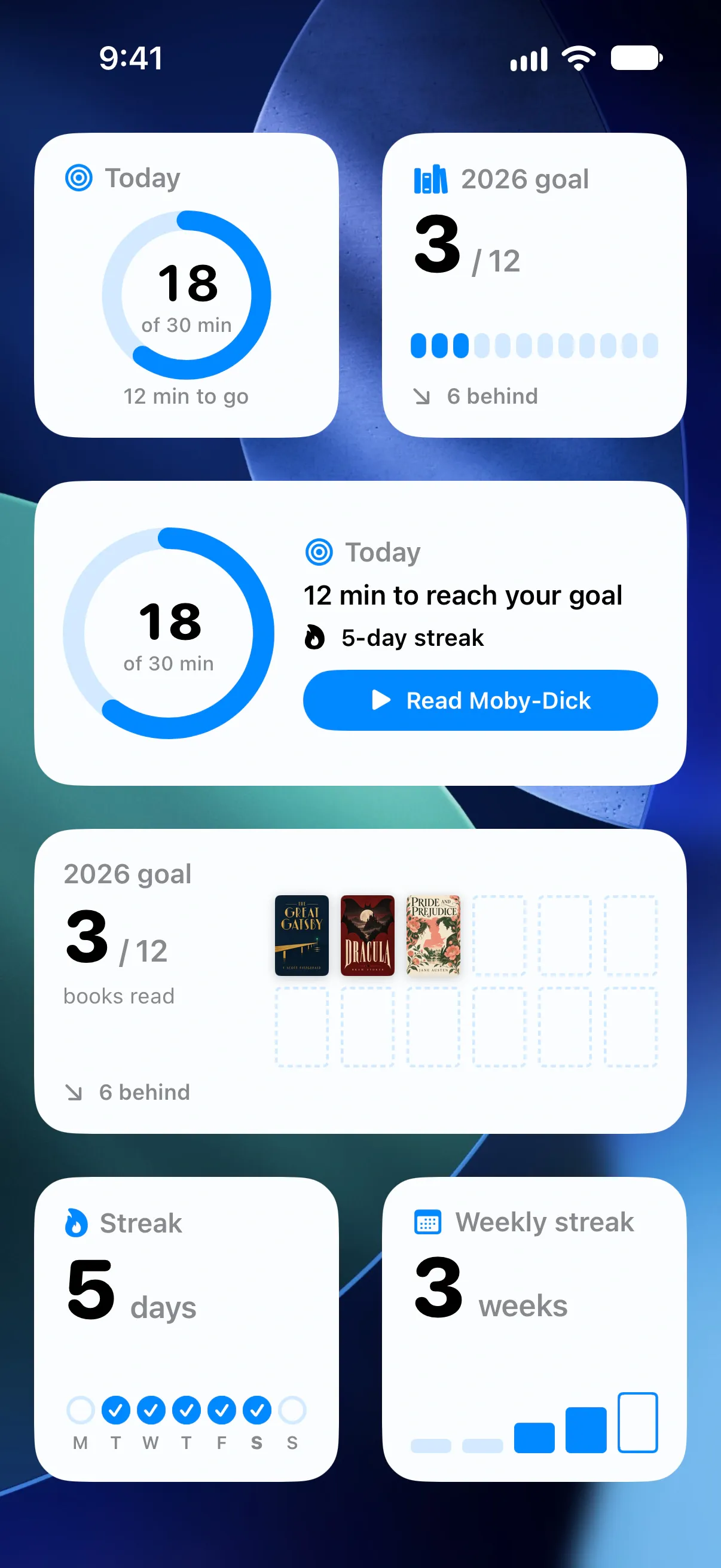
| Daily Goal | How close you are to today’s reading target | Small, medium |
| Reading Goal | The books you’ve finished toward your yearly goal | Small, medium |
| Reading Streak | The days in a row you’ve read, with a view of this week | Small, medium |
| Weekly Streak | The weeks in a row you’ve made time to read | Small |
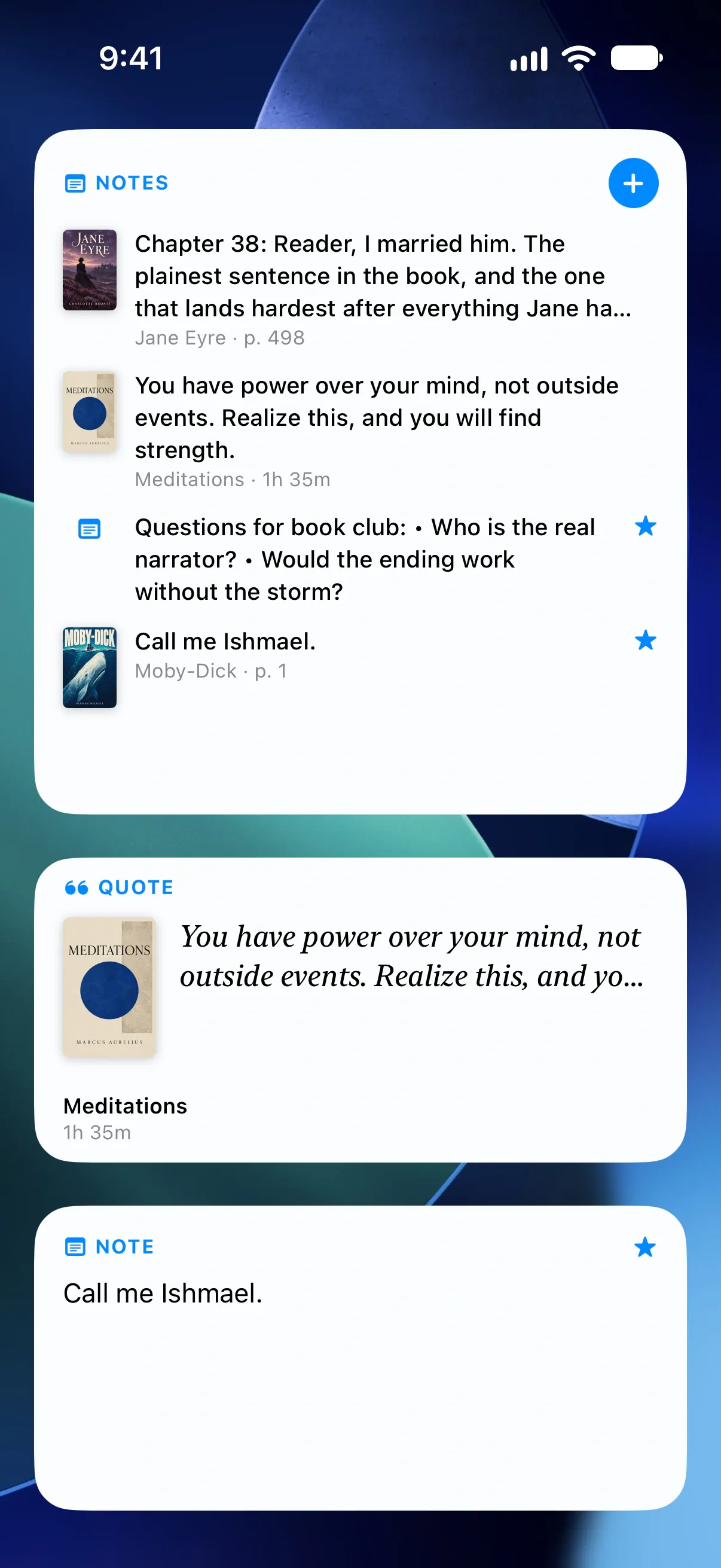
| Note | A note or quote you’ve saved | Small, medium, large |
| Notes | Your latest notes and a button to write a new one | Small, medium, large |
Your widgets use the colors of your Bookrise theme.
Log progress and time your reading
Use the medium or large Currently Reading widget to update your book or start a session:
- Tap + 10 pages to add pages. For books tracked by percentage, the button adds 5%; for audiobooks, it adds 15 minutes.
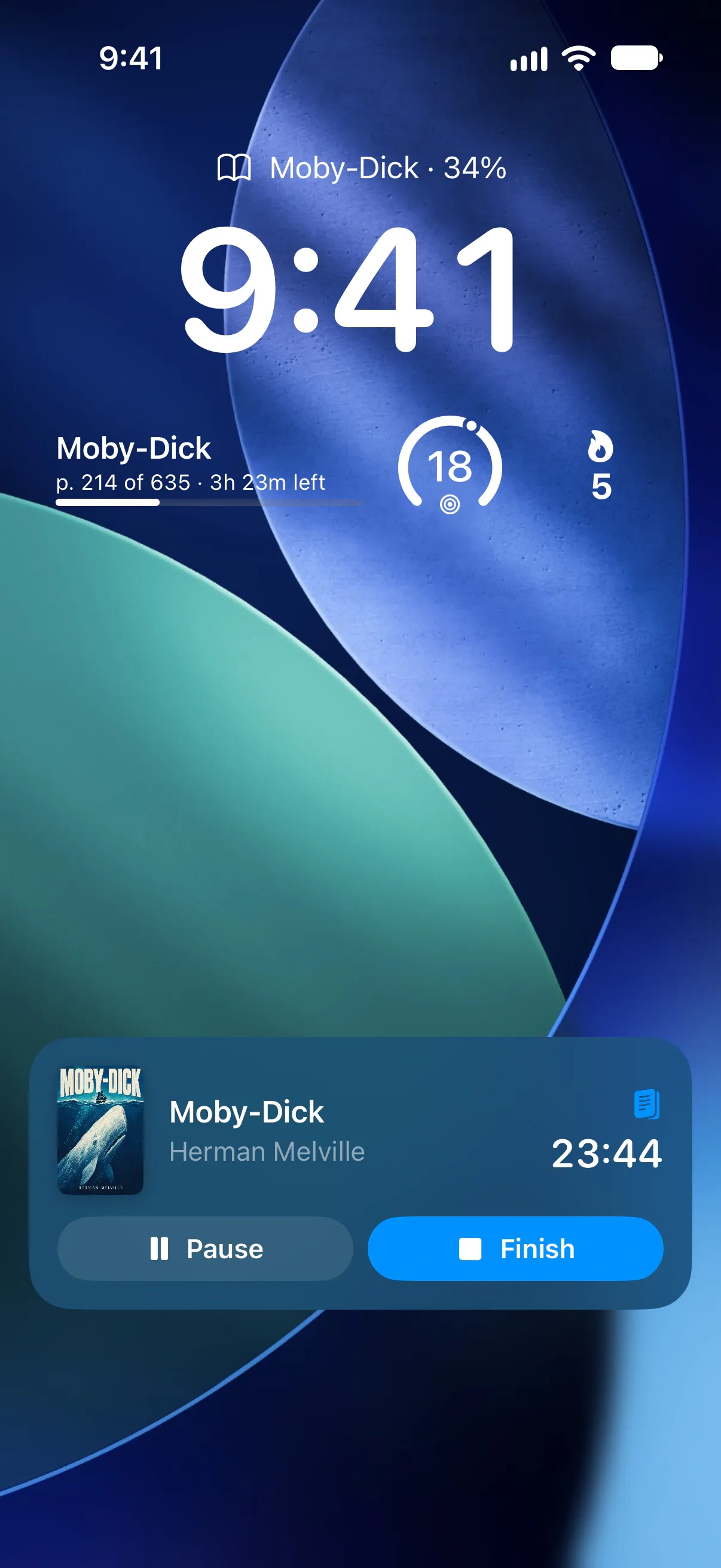
- Tap Start to begin the reading timer. While it runs, you’ll see Pause and Finish. Tap Finish to open Bookrise and save your session.
- Tap the cover or title to open the book’s page.
The large widget also shows today’s goal, your streak, your yearly goal and Up next, with the newest books on your Want to Read list.
You can start a session from other widgets too:
- On the large Reading Shelf widget, tap the play button next to a book.
- On the medium Daily Goal widget, tap the reading button, such as Read Moby-Dick, to start the book you read last.
Tap Reading Streak or Weekly Streak to open Insights.
Lock Screen widgets
- Currently Reading shows your book and progress, or the timer during a session.
- Daily Goal, Reading Goal, Reading Streak and Weekly Streak show your progress in a small round widget or a line of text above the clock.
- Note shows a saved note or quote.
- The round Notes widget starts a new note.
Your note text stays hidden on the Lock Screen until you unlock your iPhone.
Choose what a widget shows
Touch and hold a widget, then tap Edit Widget to see its options.
Choose a book for Currently Reading
Pick a Book to keep one book in view. Leave it empty to follow the book you read last. For the small widget, use Style to choose Cover or Progress Ring.
Choose a note to revisit
For the Note widget, pick a specific Note to keep it on display. Or leave it empty and choose one of these options under Show:
- A Different Note Every Day
- A Different Note Every Hour
- Newest Note
You can narrow the choice to a Book, a Tag or Favorites Only. Use Style and Show Book to change how the note looks.
Filter the Notes list
For the Notes widget, choose a Book, a Tag or Favorites Only to decide which notes appear. When you choose a book, new notes you start from that widget belong to the same book.
The other widgets follow your reading, goals and streaks in Bookrise and have no extra widget settings.
Tinted and clear Home Screens
If you choose Tinted or Clear for your Home Screen icons in iOS, Bookrise widgets follow the system’s colors. Book covers keep their original colors.
Questions and answers
Can I start the reading timer from a Bookrise widget?
Yes. Tap Start on the medium or large Currently Reading widget, the play button on the large Reading Shelf widget, or the reading button on the medium Daily Goal widget. Your session starts without opening Bookrise.
How do I change the book a widget shows?
Touch and hold the Currently Reading widget, tap Edit Widget and choose a Book. Leave Book empty if you'd like the widget to follow whichever book you read last.
Why is my note hidden on the Lock Screen?
Note widgets keep their text hidden while your iPhone is locked. Unlock your iPhone to read the note.
Related
- Add Bookrise controls to Control Center Start a reading session, scan a book or open a reading list from Control Center, your Lock Screen or the Action button on iOS 18 and later.
- How to save notes and quotes from your books Save a favorite line or a thought of your own. Write book notes, organize them with tags and share quotes as images or Markdown in Bookrise.
- How Bookrise works with iPhone features Use Bookrise from your Home Screen, Lock Screen, Siri and Apple Watch. Find quick ways to track reading, add books and save quotes on iPhone.