How to change a book cover
Give a book the cover you recognize. Find another cover online, use an image or photo, and manage the cover files saved to iCloud Drive.
Give each book a cover that feels familiar, whether it’s the edition on your shelf or artwork you prefer. You can find a cover online, paste an image or take a photo of your own copy.
Open Edit Cover
- Open the book and tap Edit.
- Tap the pencil on the cover (Edit Cover).
If the book has no cover, you can also tap the pencil on the cover area of the book’s page.
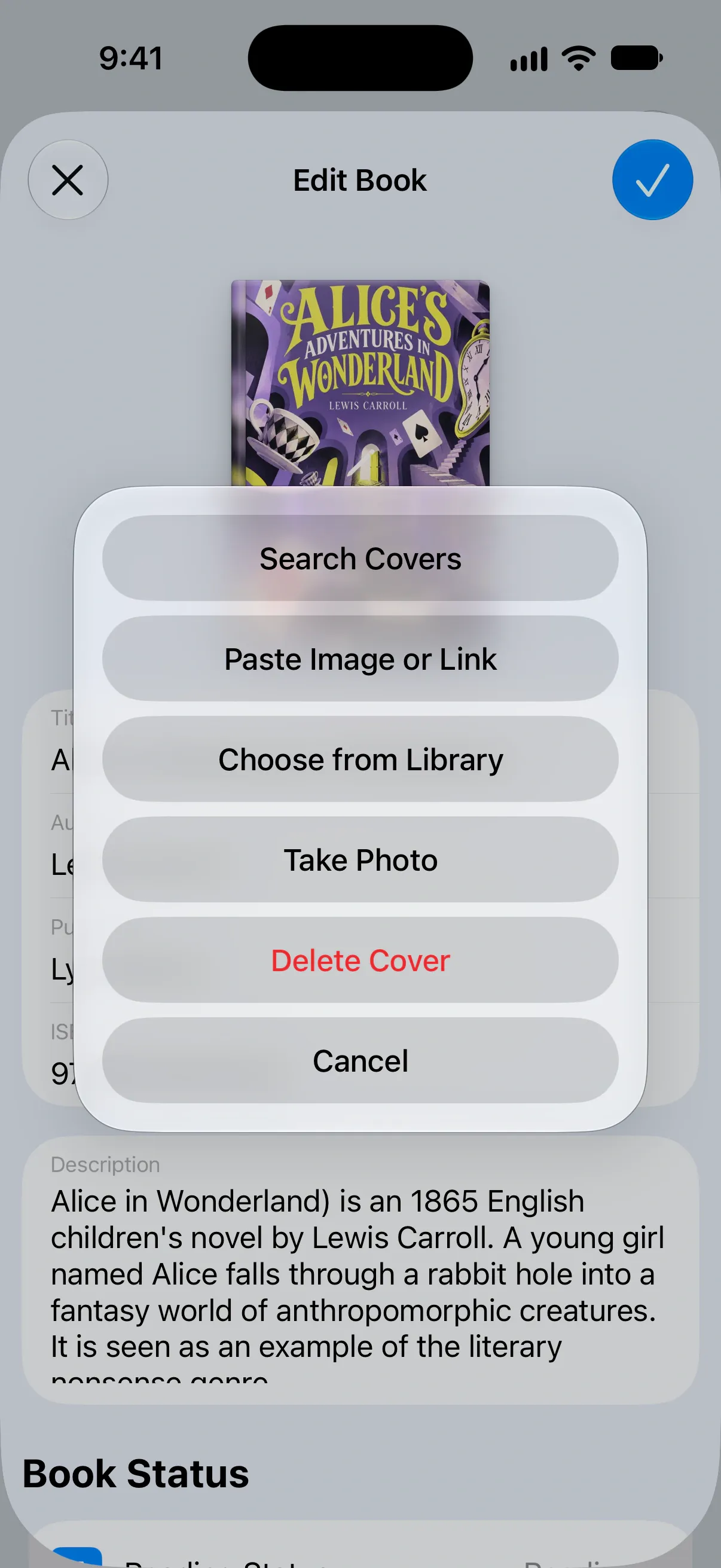
Choose where the cover should come from:
- Search Covers: find another cover online.
- Paste Image or Link: use an image or link you’ve copied.
- Choose from Library: pick a photo you’ve already taken.
- Take Photo: photograph the book in front of you.
- Delete Cover: remove your chosen cover and return to the book’s default cover.
When you’re happy with the cover, tap the checkmark on Edit Book to save your change.
Search for a cover
Tap Search Covers. The book’s title and author are already filled in, so you can browse the results right away. Change the search if needed, then tap the cover you want.
Paste an image or link
Copy an image or a direct link to a cover image, then choose Paste Image or Link. For example, you can copy the cover image from a bookstore website.
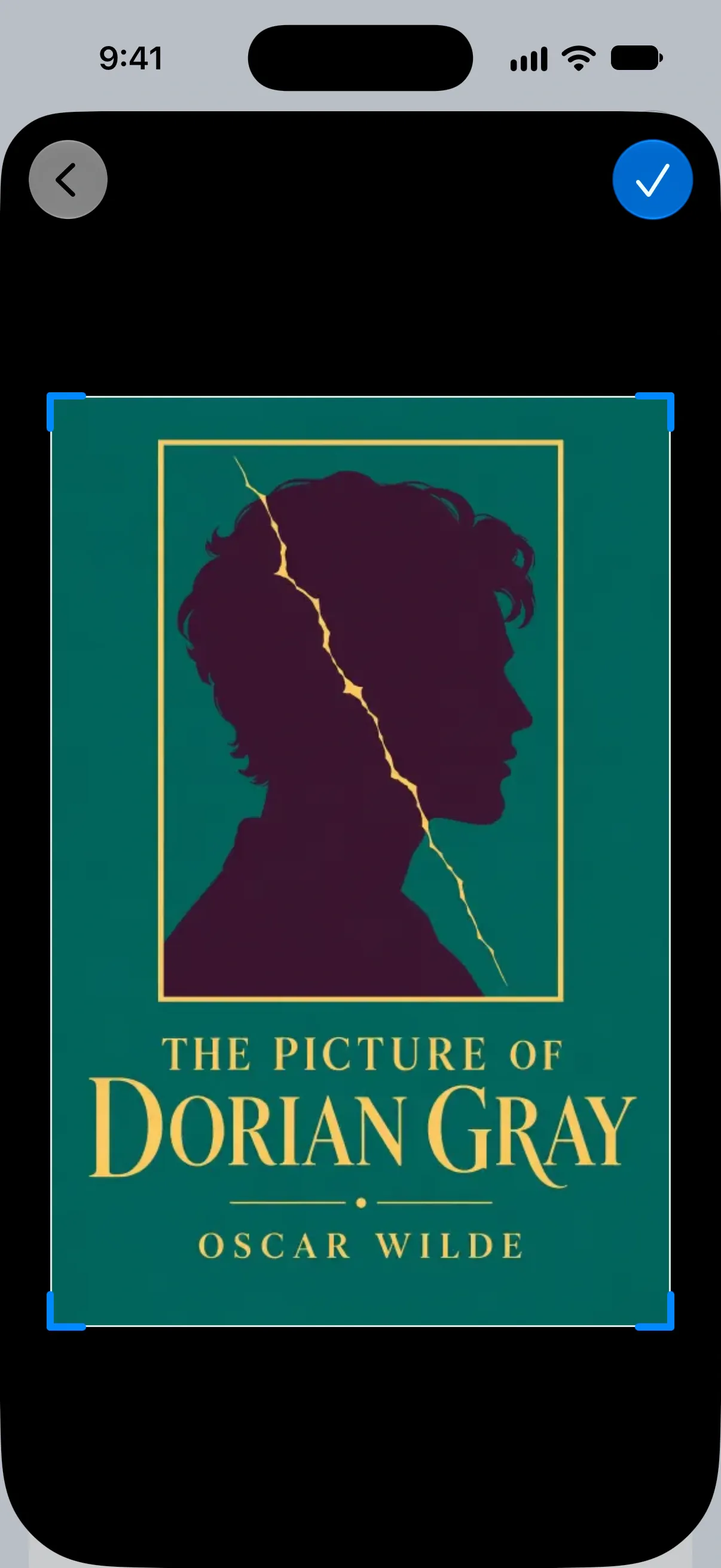
- If you copied an image, Crop Cover opens so you can adjust it.
- If you copied a link to an image, Bookrise uses that image as the cover.
- If Bookrise can’t use what’s on the clipboard, it asks you to enter a Cover Image Link.
Use a photo of your copy
- Choose Choose from Library to pick an existing photo, or Take Photo to take one now.
- Bookrise looks for the cover’s edges and opens Crop Cover.
- Drag the corners to fit the cover. Use the magnifier to see what’s under your finger. You can pinch to zoom in and double-tap to zoom out.
- Tap the checkmark to save the crop, then save your changes on Edit Book.
Where your covers are saved
Covers you photograph, choose from your photo library or paste as an image are saved to the Bookrise folder in your iCloud Drive. Bookrise explains this the first time you add one.
These images count toward your iCloud storage. You can see the current cover’s file size below it on Edit Book. Saving cover files in iCloud Drive doesn’t sync your Bookrise library between devices.
If you see iCloud Drive Is Off, sign in to iCloud and turn on iCloud Drive in your device settings, then try adding the image again. Covers from Search Covers or an image link don’t need iCloud Drive.
Delete covers and free up iCloud space
To remove a cover you’ve added, open Edit Cover and choose Delete Cover. The book returns to its default cover. If the image is stored in iCloud Drive, Bookrise asks you to confirm and deletes that file when you save the book.
To manage all your cover photos on iPhone or iPad, open Settings → iCloud Covers. You’ll see how many covers are stored, the Storage Used and which books use them.
- Delete All Unused removes cover photos that no book uses, such as images you’ve replaced or didn’t save.
- Delete All Covers removes every cover photo. Books using those photos return to their default covers.
Questions and answers
Where does Bookrise save cover photos?
Cover photos and pasted images are saved to the Bookrise folder in your iCloud Drive. They use your iCloud storage. Saving these files to iCloud doesn't sync your Bookrise library between devices.
Why does Bookrise say iCloud Drive Is Off?
Bookrise needs iCloud Drive to save a cover photo or pasted image. Sign in to iCloud and turn on iCloud Drive in your device settings, then try again. You can still use Search Covers or a link to a cover image without iCloud Drive.
How do I free up iCloud space used by covers?
Open Settings → iCloud Covers and tap Delete All Unused. This removes cover photos that no book uses, such as images you've replaced or didn't save.