How to save notes and quotes from your books
Save a favorite line or a thought of your own. Write book notes, organize them with tags and share quotes as images or Markdown in Bookrise.
Save a line you loved, a question for later or a thought of your own. Keep it with the book and page it came from, or save it on its own. You can organize your notes with tags and share the ones you want to pass along.
Create a note
Start a note from any of these places:
- From the Notes tab: tap New Note.
- From a book’s page: tap Add Note in the Notes section.
- While reading: tap Add Note during a Reading Mode session, or after you finish it.
Write and save your note
- Check the book shown at the top, or tap Select Book to choose one. You can also save the note without a book.
- Type your note.
- If you like, tap Add Tags to organize it or the heart to mark it as a favorite.
- Tap the checkmark to save.
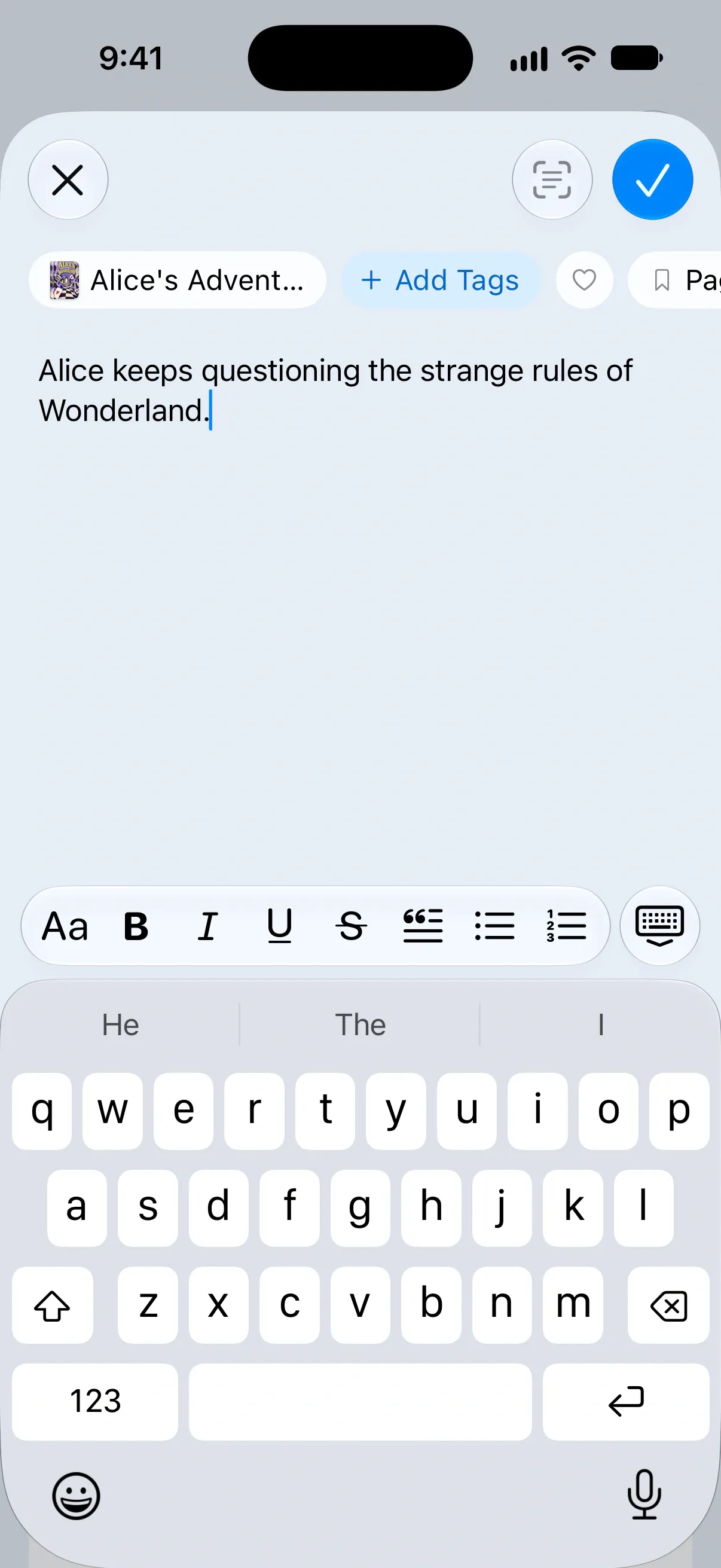

Link a note to a page
Add a page number so you can find the passage in your book again:
- Make sure the note is linked to a book.
- Tap Page and enter the page number in Note Location.
- Tap OK.
The page number appears on the note and can be included on images you share.
Format notes
Use the bar above the keyboard to give longer notes some structure. Add headings, quotes or lists, and use bold, italic, underline or strikethrough to emphasize a passage. Select text to add a link.
Save text from a photo
On iPhone and iPad with iOS 26 or later, save a passage from a printed page without typing it:
- In the note editor, tap Import from Photo.
- Tap Take Photo or Choose Photo.
- Touch and hold a word, then drag the handles to select the passage you want.
- Tap the checkmark to insert it into your note.
Dictate or share text
On iPhone and iPad with iOS 26 or later, tap the microphone next to the formatting bar, speak, then tap Insert Dictation. The first recording downloads a speech model; later recordings work offline. The microphone appears when your language is supported.
Reading in another app? Select the text, tap Share and choose Bookrise. A new note opens with the selected text as a quote.
Organize with tags and favorites
Tags bring related notes together, even when they come from different books. Use themes such as quotes, ideas or definitions, or create your own:
- In a note, tap Add Tags.
- Select the tags you want, or tap Create Tag to add a new one.
- Tap the checkmark.
To keep a note close, tap the heart to add it to Favorites.
You can manage your tags from Tags on the Notes tab. Tap Create Tag to add one, or View All to browse them. Touch and hold a tag to choose Edit Tag or Delete Tag. Deleting a tag keeps its notes.
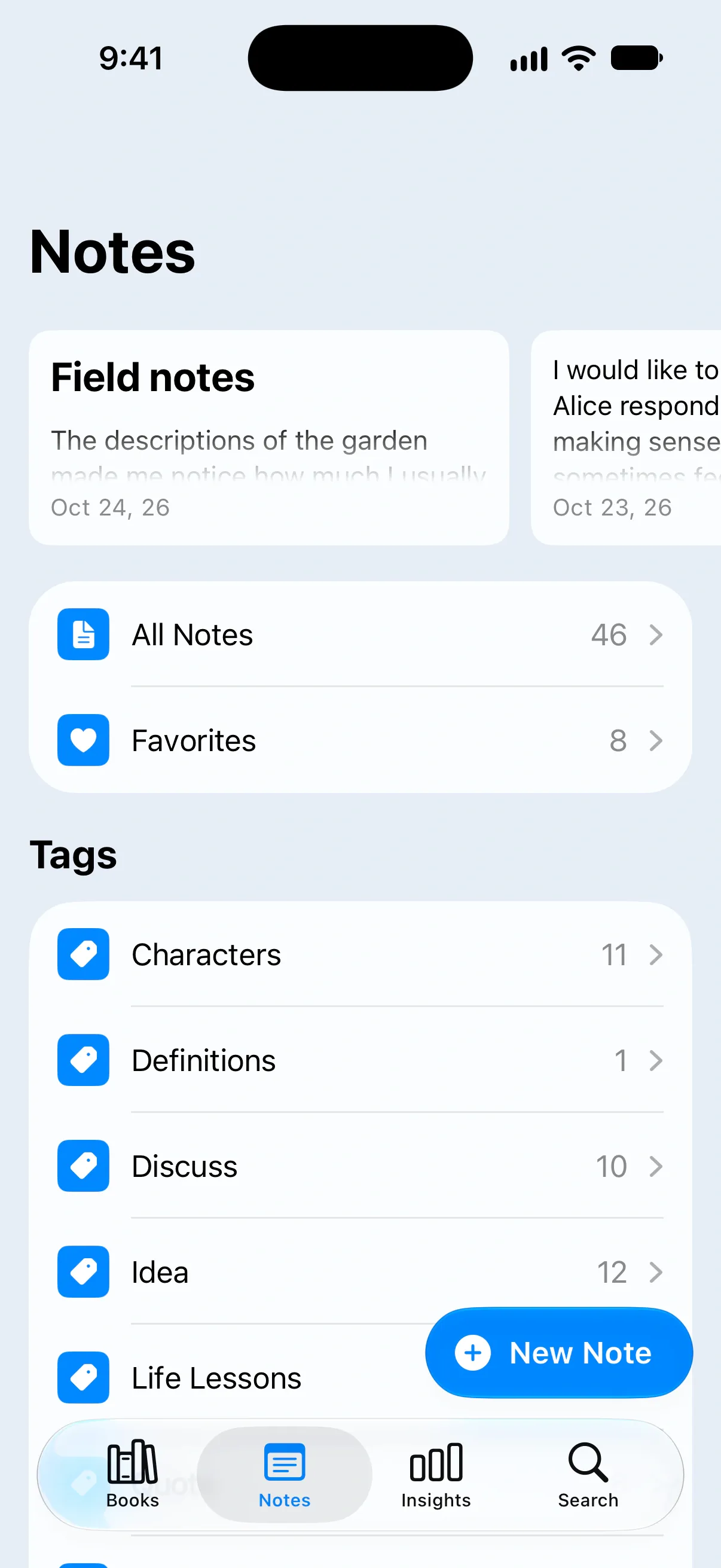
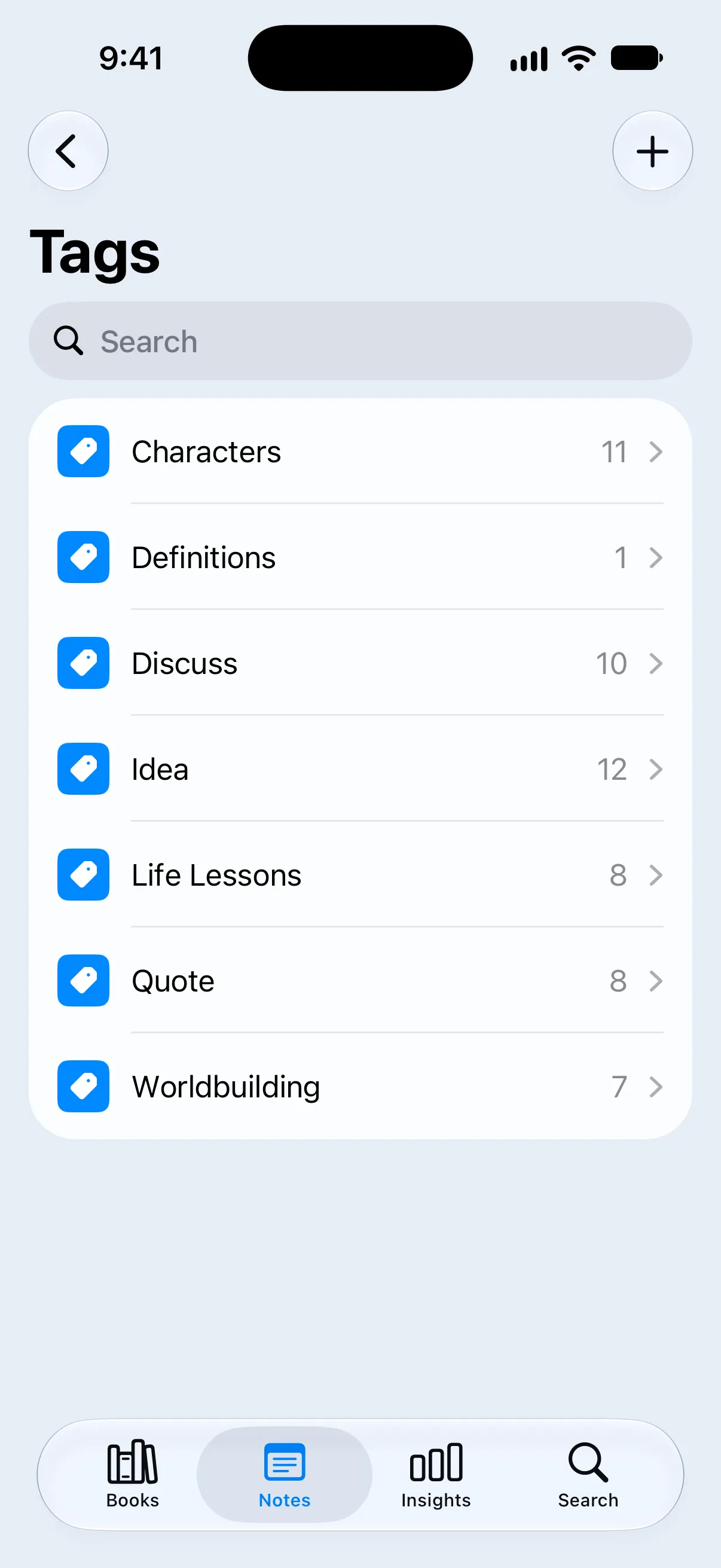
Tags organize notes. To group the books themselves, use categories and collections.
Find and sort notes
The Notes tab shows your latest notes first, with All Notes, Favorites, Tags and Books below. Browse by book or tag, or open All Notes to search everything.
Search for a word or phrase, or tap Sort to order notes by Title, Added At or Edited At. Choose Ascending or Descending to reverse the order.
Share a note
Open the note and tap the share button:
- Copy Markdown: copy the note with its formatting for use in apps that support Markdown.
- Share Markdown: send the note as Markdown to another app.
- Share Image: turn the note into an image you can share.
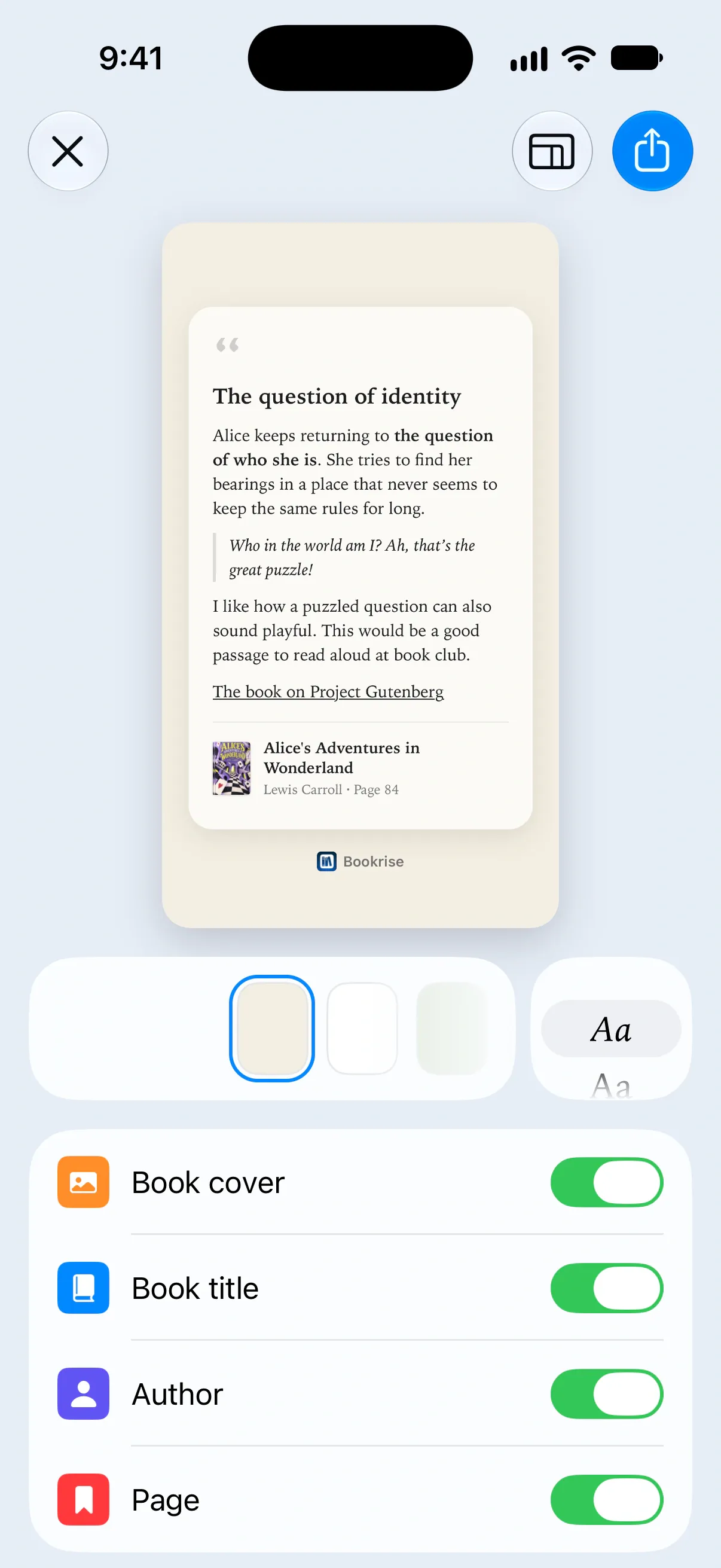
For an image, make the card your own:
- Pick a font style, such as Book, Quote or Handwritten, and choose a background.
- Use the button at the top to change the card’s shape.
- Choose whether to show Book cover, Book title, Author and Page.
- Leave Auto scale on to fit the text to the card, or turn it off to set the text size yourself.
- Hide the Bookrise logo if you prefer.
Edit or delete a note
Open the note and tap Edit to change it. To remove it, tap ⋯ and choose Delete Note.
Questions and answers
Does a note have to belong to a book?
No. You can link a note to a book, or save it on its own. Tags and favorites help you organize either kind.
Can I scan a quote from a printed page?
Yes. On iPhone or iPad with iOS 26 or later, tap Import from Photo in the note editor. Take or choose a photo of the page, then select the text you want to keep.
How do I export all my notes?
Open Settings → Import & Export and tap Export Notes. This saves your notes as a plain text CSV file. To keep formatting for an individual note, use Copy Markdown or Share Markdown instead.
Will deleting a tag delete its notes?
No. Deleting a tag removes the tag, but keeps the notes in your library.
Related
- How to export your books and notes to a CSV file Save your books or notes as a CSV file to open in a spreadsheet or use in another app, and learn which details come with the export.
- How to organize books with categories and collections Create categories and collections, add or remove books, and find favorites and authors in your Bookrise library.
- How Bookrise works with iPhone features Use Bookrise from your Home Screen, Lock Screen, Siri and Apple Watch. Find quick ways to track reading, add books and save quotes on iPhone.