How to fix CSV import problems in Bookrise
Get help with CSV imports in Bookrise, from matching your book titles to fixing file formats, import errors and mixed-up dates.
Most exports work as they are. If Bookrise needs help reading yours, it may ask you to match the columns or show a message explaining what went wrong. Start with the message you see below.
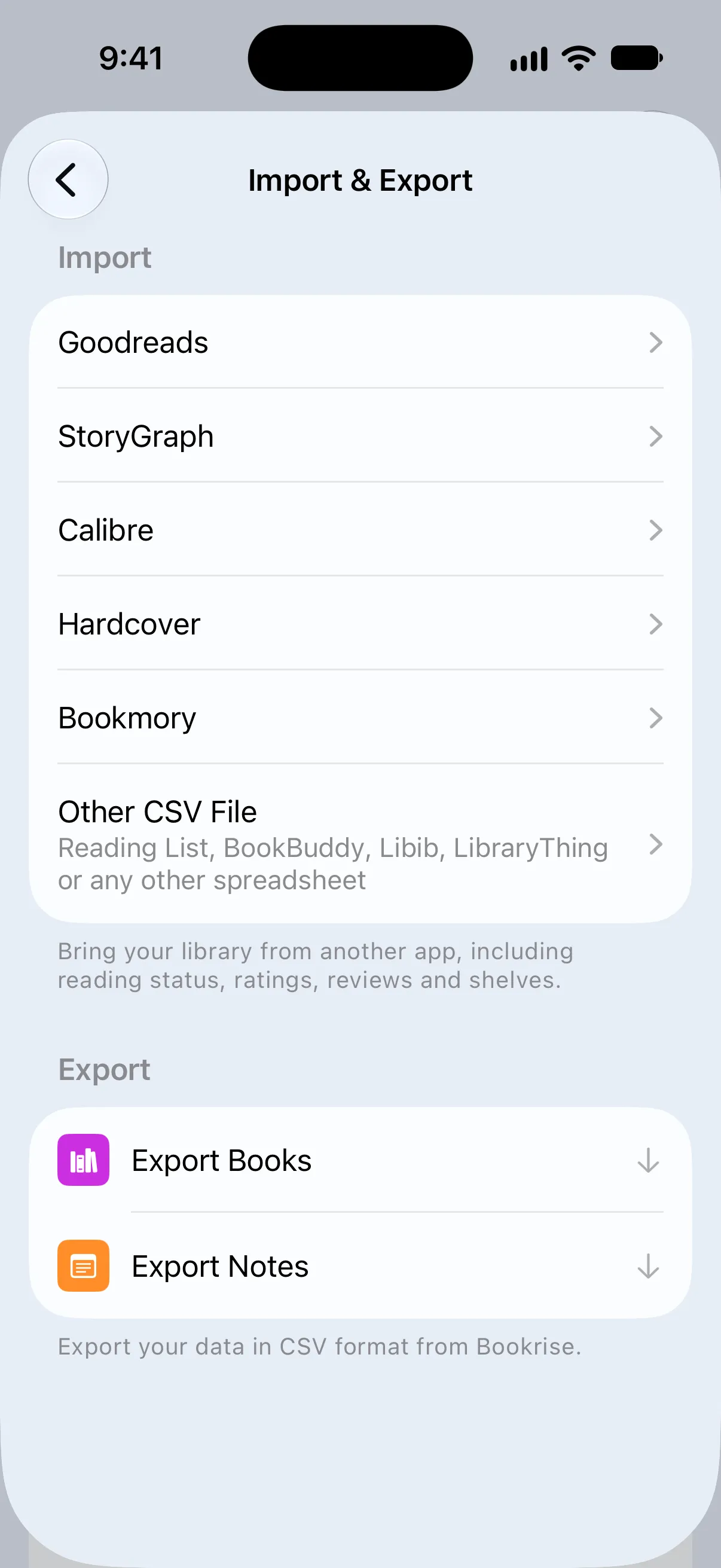
To choose a file from a spreadsheet or an app that isn’t listed, open Settings → Import & Export → Other CSV File.

Match the columns in your file
On Match Columns, tell Bookrise where to find the details for each book. The note under Check your columns explains why it needs your help:
- If you chose Other CSV File, the note shows how many rows were found. Bookrise has already matched the columns it recognizes.
- If the file doesn’t look like an export from the app you chose, you can match its columns and import it anyway.
- If Bookrise recognizes the export but can’t find a title or author column, check whether those headers were renamed in your spreadsheet.
Fields are grouped under Book Details, Reading, Ownership & Purchase and Organization. Each one shows the selected column and an example from your file.
- Start with Title and choose the column that contains your book titles.
- Check the other fields. Tap one to choose a different column, or choose Don’t Import to leave that detail out. Each field uses one column.
- Look at Preview at the bottom. It shows the first books with the author, reading status and rating they’ll have after the import.
- Tap the import button. It includes the book count, such as Import 120 Books.
Title is the only required field. If you see “Choose the column with book titles to continue.”, select a column for it to enable the import button. Rows with an empty title are skipped.
Error messages and what to do
“This file doesn’t contain any books.” The file has column headers but no books below them. Open the file to check, then export again from your old app. Make sure the export includes your whole library.
“Couldn’t read this file. Choose a CSV export and try again.” Check the file format. An Excel workbook, Numbers document or PDF isn’t a CSV file. Open your spreadsheet app, export the sheet as CSV and choose the new file in Bookrise.
Import Failed: “We couldn’t find any books in this file. Check that it has a column with book titles.” Bookrise couldn’t find a title in any row. Check that your file has a column of book titles with values below the header. Tap Retry and choose the file again.
Import Failed: “Something went wrong while importing your data. Please try again.” Tap Retry and choose the file again.
How Bookrise reads your file
You usually don’t need to reformat an export before importing it. Bookrise can read:
- Different separators: commas, semicolons, tabs and
|are detected automatically. A CSV saved with semicolons can be imported as it is. - Common text encodings: UTF-8 with or without a byte order mark, UTF-16 (called “Unicode Text” in Excel), and older Windows and Latin-1 files.
- An extra row above the headers: a sheet title, for example, is skipped.
- Different date formats: 2024-04-03, 03/04/2024, 3 April 2024, April 3, 2024 and similar formats, including Excel date numbers.
- Different rating scales: ratings out of 5, 10 or 100, based on the largest number in the column. Formats such as “4/5”, “8 out of 10”, stars and half stars are also supported.
- Reading statuses in several languages: this includes shelf names such as “currently-reading” or “dnf”. Without a status column, a finish date makes a book Finished; a start date without a finish date makes it Reading; otherwise, it’s To Read.
- Several values in one cell: authors, categories and collections can be separated by commas, semicolons or
|. Contributors marked in brackets, such as “(Translator)” or “(Illustrator)”, are left out.
If dates come out wrong
A date such as 03/04/2024 can mean March 4 or April 3. Bookrise checks the date columns for a day above 12 to work out the order. If every date could be read either way, it follows your device’s region: month first in the United States, day first in most other regions.
To avoid this mix-up, use year-month-day in your spreadsheet, such as 2024-04-03 for April 3, 2024, before importing it.
Bookmory exports Excel files
If you’re bringing books from Bookmory, convert its Excel export to CSV before choosing it in Bookrise:
- In Bookmory, switch the app language to English so its column names match what Bookrise expects.
- Export your books as an Excel file.
- Open the export in Numbers, Excel or Google Sheets. Export the first sheet as a CSV file.
- In Bookrise, open Settings → Import & Export → Bookmory.
- Tap Choose CSV File and choose the CSV you just saved.
For an Excel file from another source, export the sheet as CSV in the same way, then choose Other CSV File in Bookrise.
Questions and answers
Why does Bookrise ask me to match columns?
Bookrise needs help identifying the details in your file. This can happen with an unfamiliar export or missing column headers. Choose the column with your book titles, check the other fields and preview, then tap Import.
Can I import an Excel file into Bookrise?
Export it as a CSV file first. Open the workbook in Numbers, Excel or Google Sheets, save the sheet as CSV, then choose that file in Bookrise.
Why are the day and month of my dates swapped?
Dates such as 03/04/2024 can mean March 4 or April 3. Use year-month-day, such as 2024-04-03, to avoid mix-ups. For books already imported, edit their dates in Bookrise; importing again won't update existing books.
Related
- How to import your library from Goodreads, StoryGraph or a CSV file Bring your books and reading history into Bookrise from Goodreads, StoryGraph or a CSV export, without adding each book again.
- How to export your books and notes to a CSV file Save your books or notes as a CSV file to open in a spreadsheet or use in another app, and learn which details come with the export.