How to export your books and notes to a CSV file
Save your books or notes as a CSV file to open in a spreadsheet or use in another app, and learn which details come with the export.
Keep a copy of your reading list, explore your books in a spreadsheet or take your notes to another app. Bookrise exports books and notes as separate CSV files, which you can open in apps such as Numbers, Excel or Google Sheets.
Export your books or notes
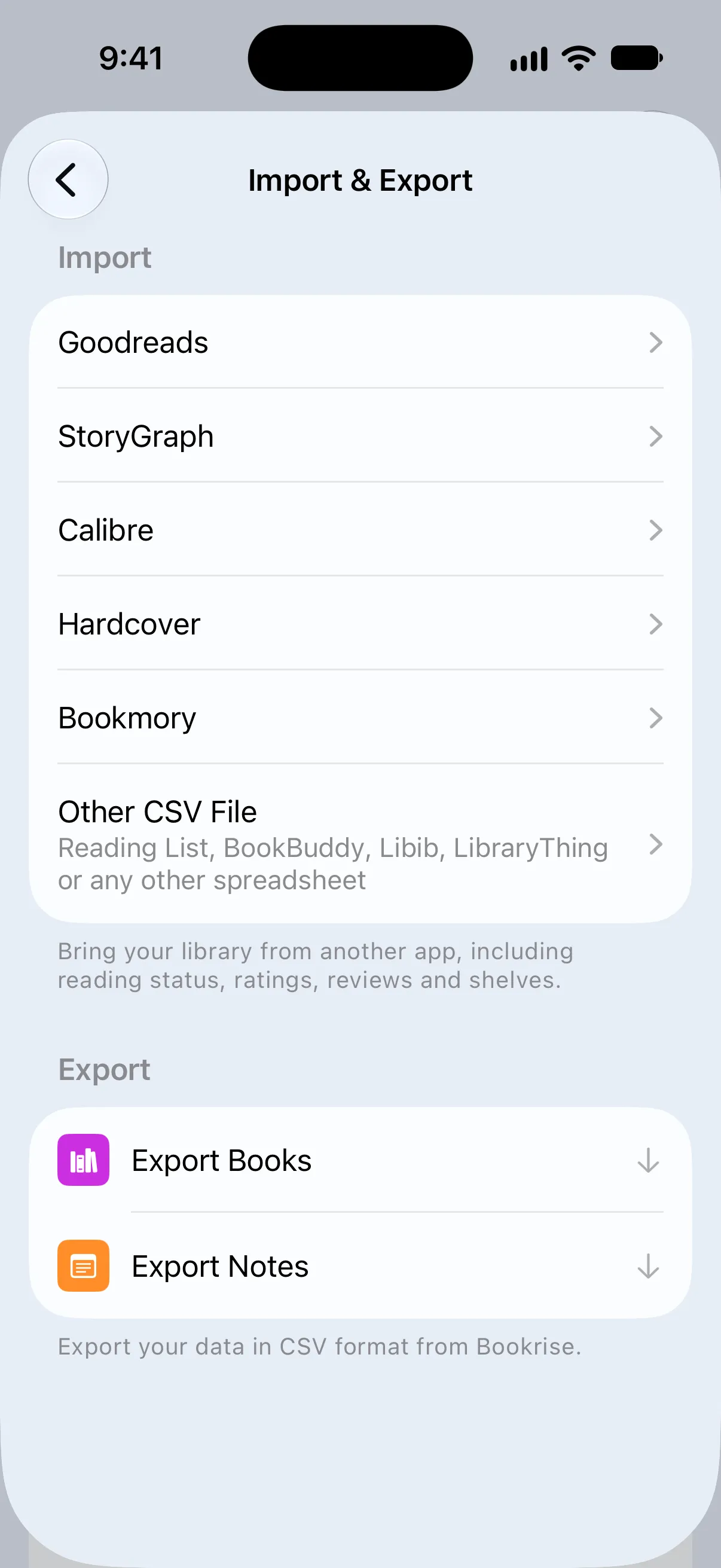
- On the Books tab, open Settings and tap Import & Export.
- Under Export, tap Export Books or Export Notes.
- Choose where to save or send the file, such as Save to Files, Mail or another app.

The filename includes the export date, such as Books Export 2026-10-27.csv or Notes Export 2026-10-27.csv, so you can tell your copies apart.
What the books file contains
The books file has one row for each book. These columns hold its details and reading history:
- Title, Author (all authors, separated by commas), ISBN, Publisher, Publishing Date and Page Count.
- Current Page: how far you’ve read.
- Date Added: when the book was added to your library.
- Date Started and Date Finished: the dates of your current or most recent read.
- Dates Read: the start and finish dates of every read, separated by commas.
- Read Count: how many times you’ve read the book, including a read in progress.
- Reading Status: To Read, Reading, Finished or Abandoned, in the app’s language.
- Rating, such as 4 or 4.5, and Is Favorite (Yes or No).
- Review, Emotions, Would Read Again (Yes, No or Maybe) and Date Reviewed.
- Ownership: Owned, Not Owned or Borrowed.
- Purchase Price (including currency), Purchase Date, Store and Purchase Note: details of your latest purchase of the book.
Dates use year-month-day, such as 2026-10-27. Reviews are stored as Markdown, which represents their formatting as text.
What the notes file contains
The notes file has one row for each note, with the newest first:
- Title: the note’s title, if it has one.
- Note: the text of the note, without formatting.
- Date Added and Is Favorite (Yes or No).
The file doesn’t include which book a note belongs to, and the note text doesn’t keep its formatting.
What the export leaves out
CSV exports include the fields listed above. They leave out covers, categories, collections, series, book descriptions and timed reading sessions.
If you want a complete copy of your library, including its groups and reading sessions, use a library backup.
Import a Bookrise export
To bring your exported books back into Bookrise, including on another device:
- Move the file to the device.
- Open Settings → Import & Export and tap Other CSV File.
- Tap Choose CSV File and choose the books export.
Bookrise recognizes its own books export and brings back the statuses, dates, reading history, ratings, reviews and purchases. It looks up covers again in the background and skips books already in your library. Learn more about importing books.
The notes export is for keeping a text copy or using in another app. Bookrise doesn’t import notes CSV files.
Questions and answers
Does the CSV export include my book covers?
No. CSV files contain text rather than images. If you import a books export back into Bookrise, it looks up the covers again in the background.
Can I import a Bookrise export back into Bookrise?
Yes, for books. Open Settings → Import & Export → Other CSV File, then choose your books export. Bookrise recognizes the file without asking you to match its columns and skips books already in your library.
Can I import my exported notes back into Bookrise?
No. The notes export lets you keep a plain text copy or use it in another app. Bookrise doesn't import notes CSV files.