How to use Bookrise with Siri and Shortcuts
Use Siri to start a reading session, log your progress or check your streak, and add Bookrise actions to your own shortcuts.
Ready to read? Ask Siri to start your session, log where you left off or tell you how your streak is going. You can also combine Bookrise actions in the Shortcuts app to make a shortcut that fits your routine.
These features work on iPhone and iPad. You don’t need to create your own shortcuts before trying Bookrise’s Siri phrases.
Things you can ask Siri
Say “Siri” or “Hey Siri”, then ask for what you’d like to do. Include “Bookrise” so Siri knows which app to use.
| Shortcut | Try saying | What it does |
|---|---|---|
| Start Reading | “Start reading in Bookrise” | Starts or resumes your reading session. |
| Pause Reading | “Pause reading in Bookrise” | Pauses the session and tells you how long you’ve read. |
| Finish Reading | “Finish reading in Bookrise” | Stops the timer and opens Bookrise so you can save your progress. |
| Update Progress | “Update my page in Bookrise” | Asks where you are in the book and saves your progress. |
| What Am I Reading? | “What am I reading in Bookrise” | Tells you the book, your progress and roughly how much reading time is left. |
| Reading Streak | “What’s my reading streak in Bookrise” | Tells you your streak and how today’s and this year’s goals are going. |
| Add Book by ISBN | “Add a book by ISBN in Bookrise” | Asks for the ISBN, then opens the book in Bookrise so you can add it. |
| Scan a Book | “Scan a book in Bookrise” | Opens the barcode scanner. |
| Open Reading | “Open Reading in Bookrise” | Opens the books you’re reading. |
To continue a paused session, you can also say “Resume reading in Bookrise”. “Stop reading in Bookrise” finishes the session rather than pausing it.
Choose which book to use
If you don’t name a book, Siri uses the one you read last. To choose another, include its title, such as “Start reading Moby-Dick in Bookrise” or “Update Moby-Dick in Bookrise”.
You can name a book you’re reading or one of the newest books on your Want to Read list.
Update Progress follows the way you track that book. It saves pages for books tracked by page, a percentage for books tracked by percentage, or minutes listened for audiobooks.
Use the buttons in Siri’s answer
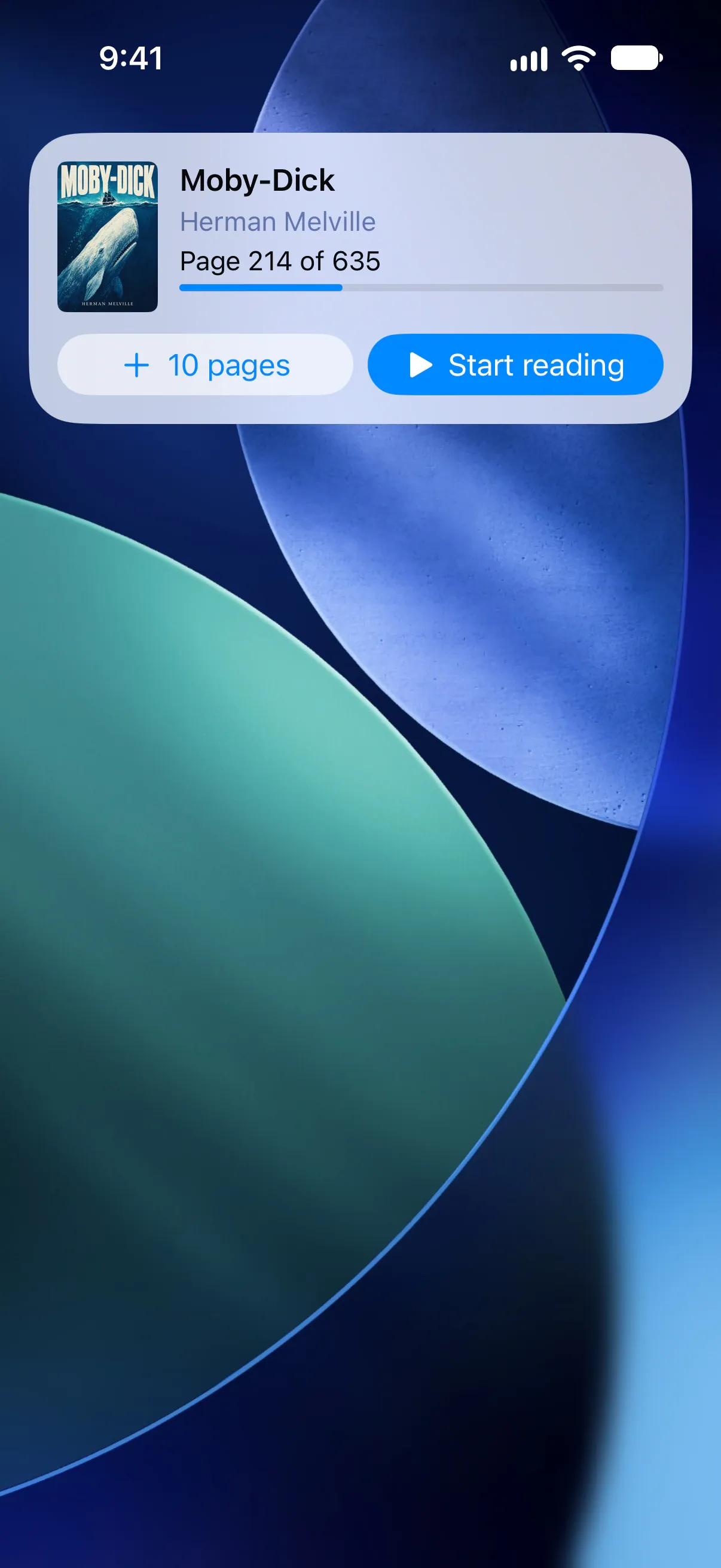
When you ask “What am I reading in Bookrise”, Siri shows your book with two buttons:
- + 10 pages adds ten pages to your progress. For an audiobook, the button adds 15 minutes instead.
- Start reading starts your reading session. While the timer is running, this becomes Pause.
Siri and Bookrise use the same reading session. On iPhone, you can follow it as a Live Activity on the Lock Screen and in the Dynamic Island. Finish there or say “Finish reading in Bookrise”, then save your progress in the app.
Find Bookrise in the Shortcuts app
- Open the Shortcuts app.
- Find Bookrise in the app shortcuts.
- Tap the shortcut you’d like to run.
Build your own shortcut
- In the Shortcuts app, tap + to create a shortcut.
- Search for Bookrise in the actions.
- Add an action, then choose its options, such as the book to use.
You can set the book and page for Update Progress in advance, so the shortcut won’t need to ask each time.
The Shortcuts app also has Open Book to open a book you choose, and Open Scan Barcode to go straight to the scanner.
Questions and answers
Do I need to set up Siri phrases for Bookrise?
No. Bookrise's phrases are available once the app is installed. Include Bookrise in your request, such as "Start reading in Bookrise".
Which book does Siri use?
If you don't name a book, Siri uses the one you read last. To choose another, say the title of a book you're reading or one of the newest books on your Want to Read list.
Can Siri update my ebook or audiobook progress?
Yes. Update Progress uses the way you track that book, whether that's pages, percentage or minutes listened.
Related
- Add Bookrise controls to Control Center Start a reading session, scan a book or open a reading list from Control Center, your Lock Screen or the Action button on iOS 18 and later.
- Add Bookrise widgets to your Home Screen and Lock Screen Keep your current book, reading goals and notes in view. Add Bookrise widgets, log pages and choose what each widget shows.
- How Bookrise works with iPhone features Use Bookrise from your Home Screen, Lock Screen, Siri and Apple Watch. Find quick ways to track reading, add books and save quotes on iPhone.